

User manual
Guide to private RC15, updated October 25, 2026. Installed-platform acceptance and public release qualification remain pending.
The app follows Spanish OS languages (including Spain and Mexico); other languages use English. Restart the app after changing the OS language. Native tray labels follow the same choice. Model names, technical identifiers and conversation text are not translated.
Set up LiteGate in four steps: install the app, connect a local provider, an API, or your subscription, choose a catalog model, and try Chat. Routes are optional: you can chat directly with a model alias.
October 3 screenshots show real controls with synthetic data and may omit newer fields. Select an image to enlarge it. The current private Apple silicon DMG is 0.1.0-rc.15, Developer ID signed and unnotarized. There are no public downloads or announced automatic updates.
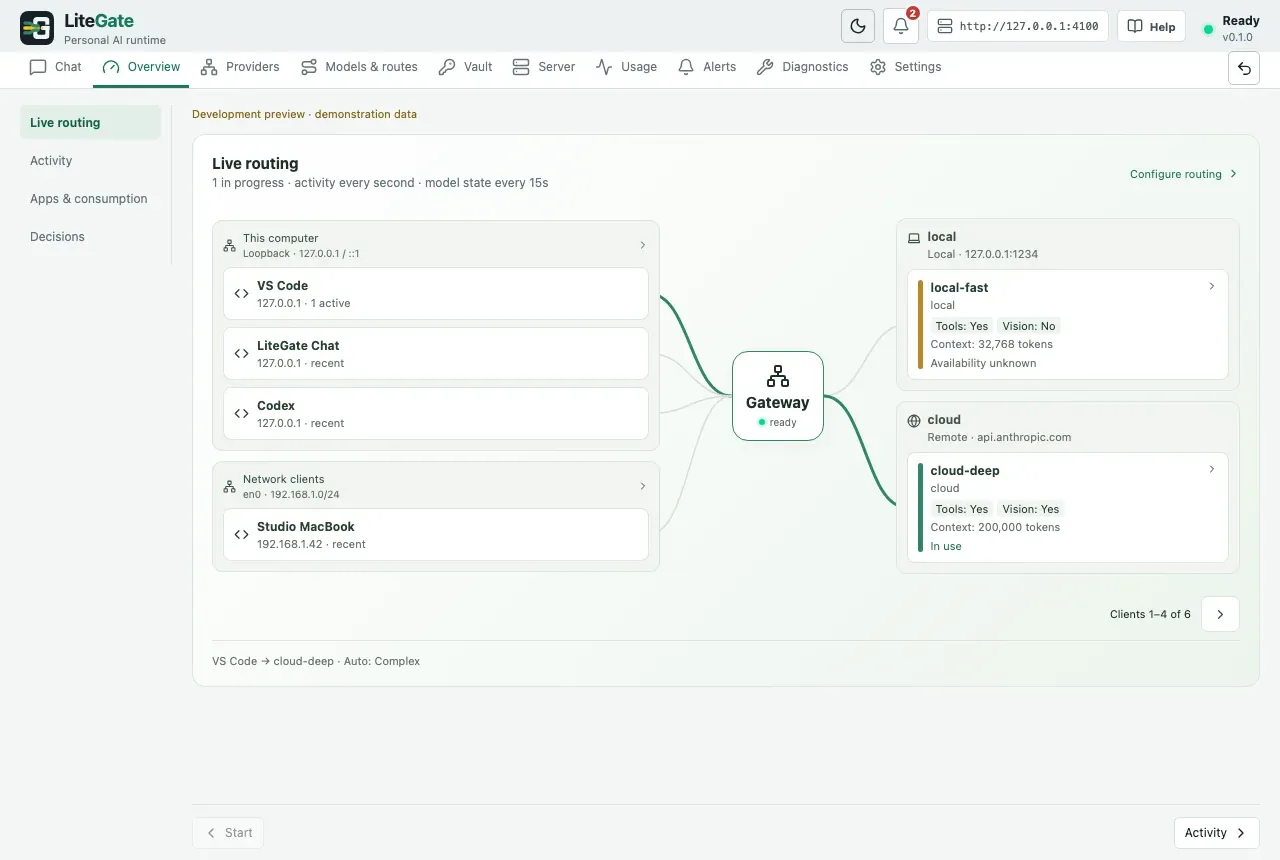
LiteGate’s starting view with synthetic data. This guide explains each part of the screen and its configuration options.
Basic and advanced interfaces
Section titled “Basic and advanced interfaces”In RC15, new installations start in Basic, showing Chat, Providers, Usage and Settings. Existing installations retain Advanced. Switch using the header or Settings → Interface; the preference persists without changing providers, models, routes, privacy or other active policies. Manual, Local, Cloud and Auto operation modes are independent.
The header’s Setup guide lets you choose local, cloud or both, open a provider connection flow, select a model from its catalog and continue to Chat to test it. Close and resume the guide at any time. Provider/model steps reflect saved configuration, not a verified conversation. Send the test message manually in Chat; it may consume credits or subscription allowance.
Basic collapses technical connection/model fields and offers All settings… for specialist sections. Links to models, diagnostics and applications remain available as contextual detail views. Connect another application, in the guide or Settings → Interface, opens client connections with preview and restore controls. Existing advanced policies remain active even when their controls are absent from basic navigation.
Both interfaces and the setup guide are included in the private RC15 DMG.
1. Install the macOS beta
Section titled “1. Install the macOS beta”- Obtain the
.dmgand, when provided, itsSHA256SUMSfile through the channel agreed with the LiteGate team. Check the Mac variant: aarch64 for Apple silicon or x64 for Intel. The current private test beta targets Apple silicon. - If you received a checksum, place both files in the same folder. Open Terminal in that folder and run
shasum -a 256 -c SHA256SUMS. It must reportOK. If it does not match, do not open the DMG; request another copy. - Double-click the DMG. In its Finder window, drag LiteGate.app to Applications. When replacing an earlier LiteGate build, quit the app from its menu first; do not use Delete LiteGate data to update.
- Eject the DMG volume in Finder. Open LiteGate from Applications, not from the mounted volume. The app can keep running in the menu bar after you close its window.
- The signed but unnotarized RC15 DMG may trigger a macOS warning. First verify its source and checksum. If you trust that copy, follow Apple’s official route in System Settings > Privacy & Security > Open Anyway after trying to open it. Do not disable Gatekeeper or remove quarantine from Terminal. If macOS says the app is damaged or contains malware, stop and request a new build. See Apple’s app safety guide.
Windows and Linux packages are project targets, but no validated public beta is available for this manual to recommend installing. The DMG does not install a CLI in your PATH; a CLI requires a separately supplied archive. No new CLI archive is part of the RC15 delivery described here.
Use horizontal primary tabs and vertical subsections. Tables have independent pagination. Back restores the previous subsection and table page after following an entity link. Save edits before leaving a primary section. Conversation messages remain scrollable.
The header groups notifications, gateway URL, Help, appearance and status. The icon-only Back button sits at the end of primary navigation. Previous/next subsection controls stay in the footer. Compact windows split dense panels into pages; conversations and logs retain useful scrolling. Edited forms show pending changes and ask before discarding them when leaving. Dialogs support Escape and return keyboard focus. Cumulative metric sparklines show observed per-minute changes during the current app session, retained across navigation but not after restarting. These observations are distinct from gateway history.
2. Check first launch
Section titled “2. Check first launch”New RC15 installations open the setup guide in Basic. Choose where to run AI, connect a provider, choose a catalog model and open Chat to test it. Close the guide to explore; Setup guide in the header reopens it. No discovery, sign-in or conversation starts automatically. Existing installations retain Advanced.
The five-slide introduction is optional, under Settings → General → Open introduction.
Check Ready in the header; for details, switch to Advanced and open Overview. The gateway status should say Ready. The address at the top is the inference endpoint, usually beginning with http://127.0.0.1:4100. LiteGate may choose another port if that one is occupied. Use the address shown in your installation, not the one in the screenshot.
Expected result: the app connects to the daemon and shows its complete address without ellipses. Ready does not mean a provider is already connected.
If you see Daemon unavailable, click View logs on that screen and read Check health. Do not configure clients until the daemon is available. Use the horizontal primary tabs to open a section.
Navigation: primary sections use horizontal tabs; subsections use a vertical rail. On narrow windows, use the Section selector. Linked model, provider, route and client-key names open their destination. Back restores the previous subsection and table page.
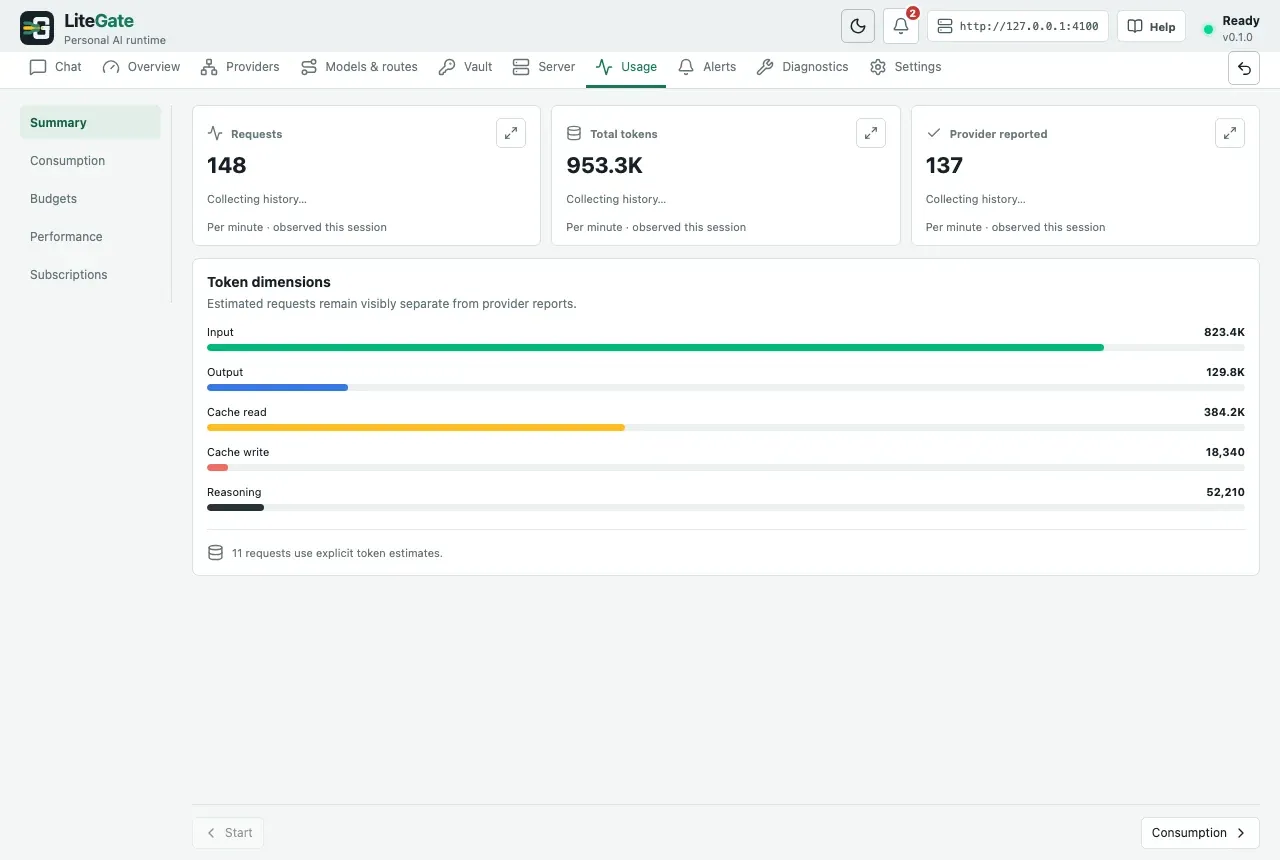
Numeric cards include a concept icon and an Expand button. Details show the available series, minimum and maximum. Request charts use gateway intervals; other counters label observations collected while the screen is open. Collecting history… does not mean zero usage.
Find your way around
Section titled “Find your way around”Basic shows Chat, Providers, Usage and Settings. The table below describes the full Advanced navigation. Linked detail views can also open from Basic.
| Screen | What you will use it for |
|---|---|
| Chat | Talk to configured aliases and manage conversation history. |
| Alerts | Configure channels, rules, quiet hours, exceptions and history retention. |
| Overview | Inspect health, endpoint, and global routing policy. |
| Providers | Discover services, save connections, and authenticate accounts. |
| Models & routes | Choose catalog models and create optional routes. |
| Server | Configure listeners and issue scoped client keys. |
| Usage | Review usage attributed to gateway traffic. |
| Diagnostics | Run checks, read logs, and connect external tools. |
| Settings | Change the port, reopen the introduction, and manage configuration and data. |
3. Connect a local model
Section titled “3. Connect a local model”You need a local inference engine that is already running its server. LiteGate does not download model weights or start LM Studio, Ollama, Unsloth Desktop, Jan, llama.cpp, or vLLM for you.
- In your engine, load a model and enable its compatible HTTP server. Note its port and, if shown, the exact model identifier.
- Open Providers → Discovery. Read what will be checked, then click Search this computer. LiteGate probes known local endpoints from its catalog and requests their model lists. It also checks installed Codex/Claude Code clients when airplane mode permits. It does not scan your LAN or discover cloud accounts, and it saves no connections automatically.
- Review the paginated results and expand the model count. An open port alone does not verify identity. Configure in My providers opens the setup form in My providers; existing connections offer navigation to their provider. Use Search again to repeat the check.
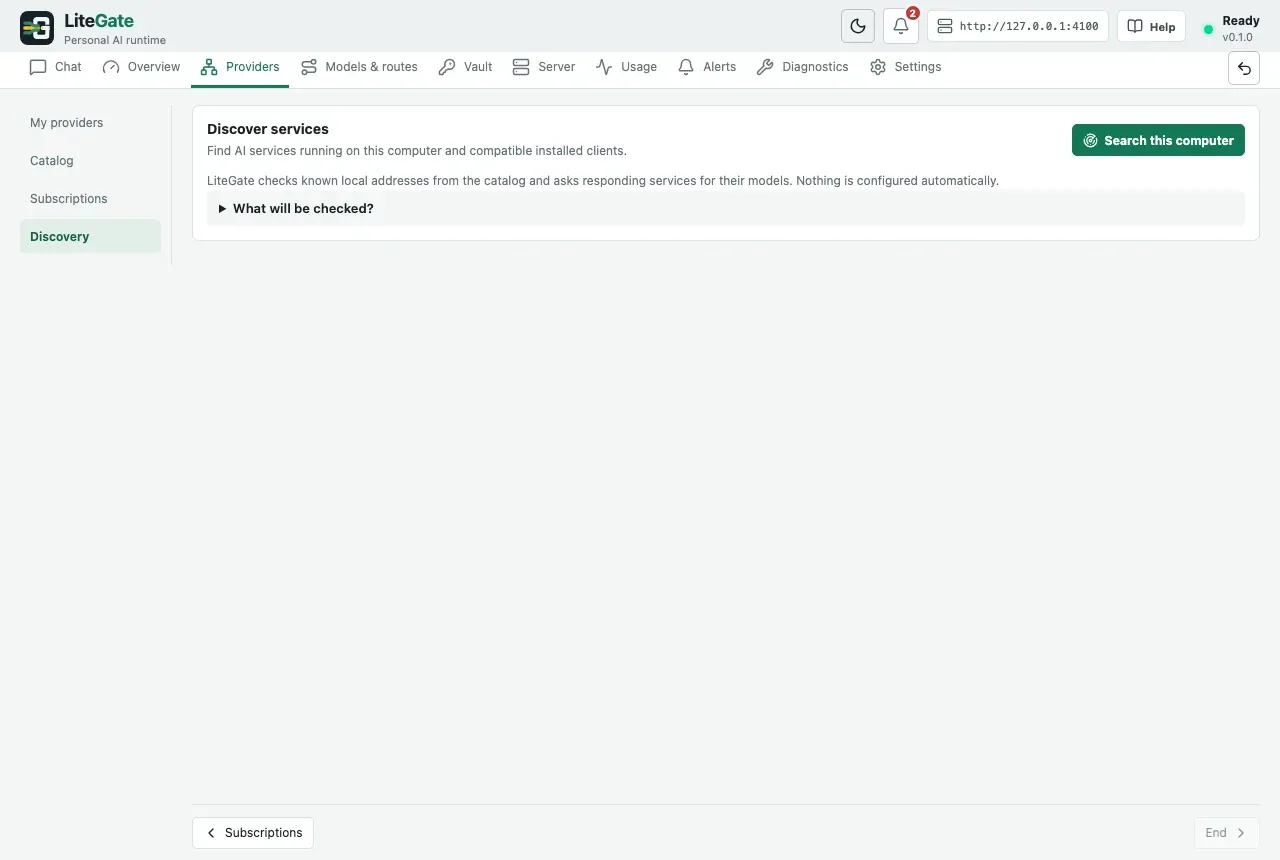
Discovery explains its scope before you start. Results depend on services running on your computer.
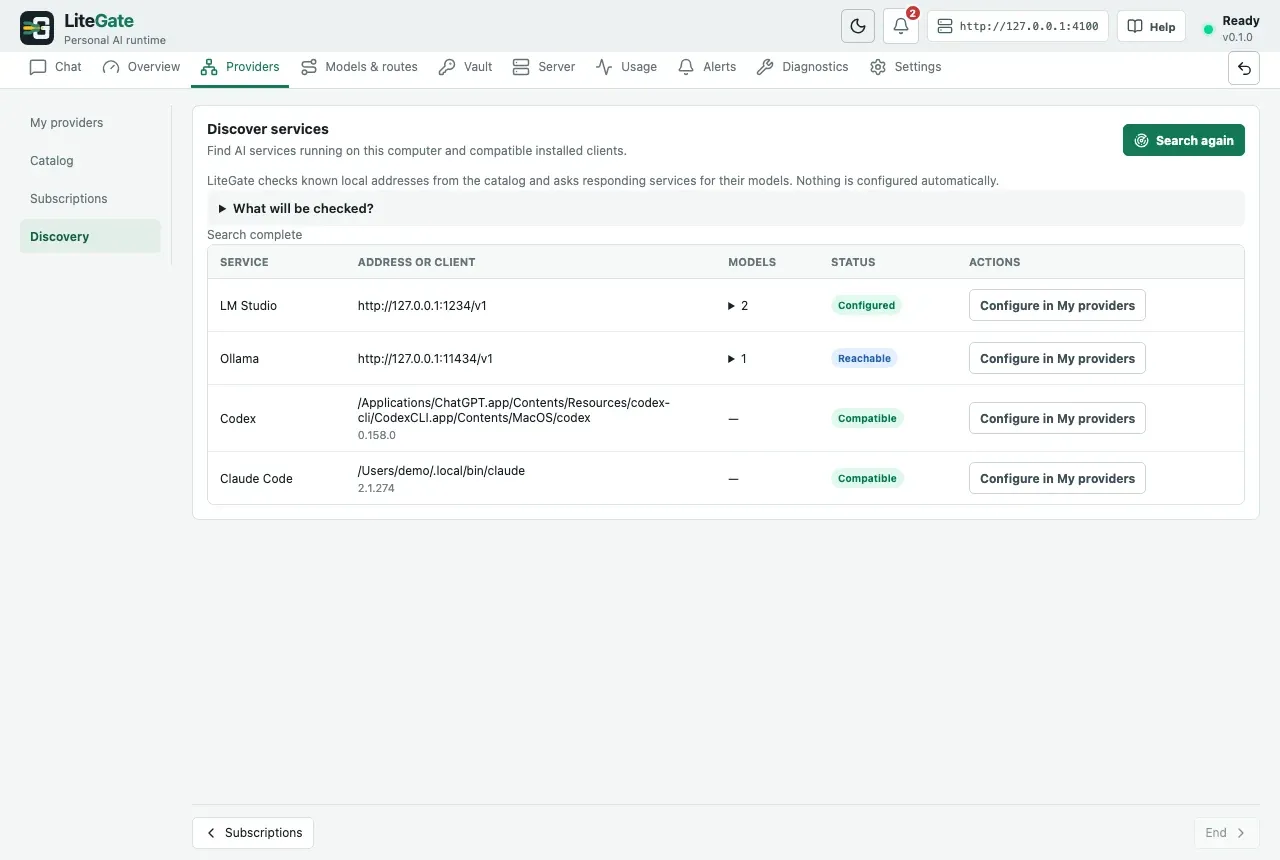
- In Add provider, confirm Preset, Location: Local, Base URL, and Protocol. If the server requires a token, choose Bearer token and enter it in API key. LiteGate stores credentials in the operating system’s secret store, not in TOML.
- Click Save provider to save the connection and credential. No model is created automatically. Add model opens with that provider selected: choose an Available model, review its alias, and click Save model. If credential storage fails, LiteGate attempts to restore the previous configuration and reports the outcome.
Check Base URL and advertised models. Model selection takes place after saving the connection.
If Discovery finds nothing, open My providers → Add provider, choose the nearest preset, correct Base URL, and use Test and discover. If no model appears, check that the local server is still running and that its model API responds. A provider without an alias in Models & routes cannot be used in Chat yet.
Unsloth Desktop with MLX models: use Protocol: OpenAI Chat. Some Unsloth versions only allow streaming Responses with a GGUF model served by llama-server. If you already saved the provider as OpenAI Responses, edit it in Providers, change its protocol, and save; keep the credential and existing model aliases. The model’s Protocol conversion: Strict/Compatible setting is different and does not select that endpoint. Also review Context tokens: use the actual loaded model capacity, not the generic form default.
Provider template catalog
Section titled “Provider template catalog”Providers has four subsections: My providers, Catalog, Subscriptions, and Discovery. A template describes a service; it is not a connection or a fixed model list. This screen is included in beta 7; earlier installers may not have it.
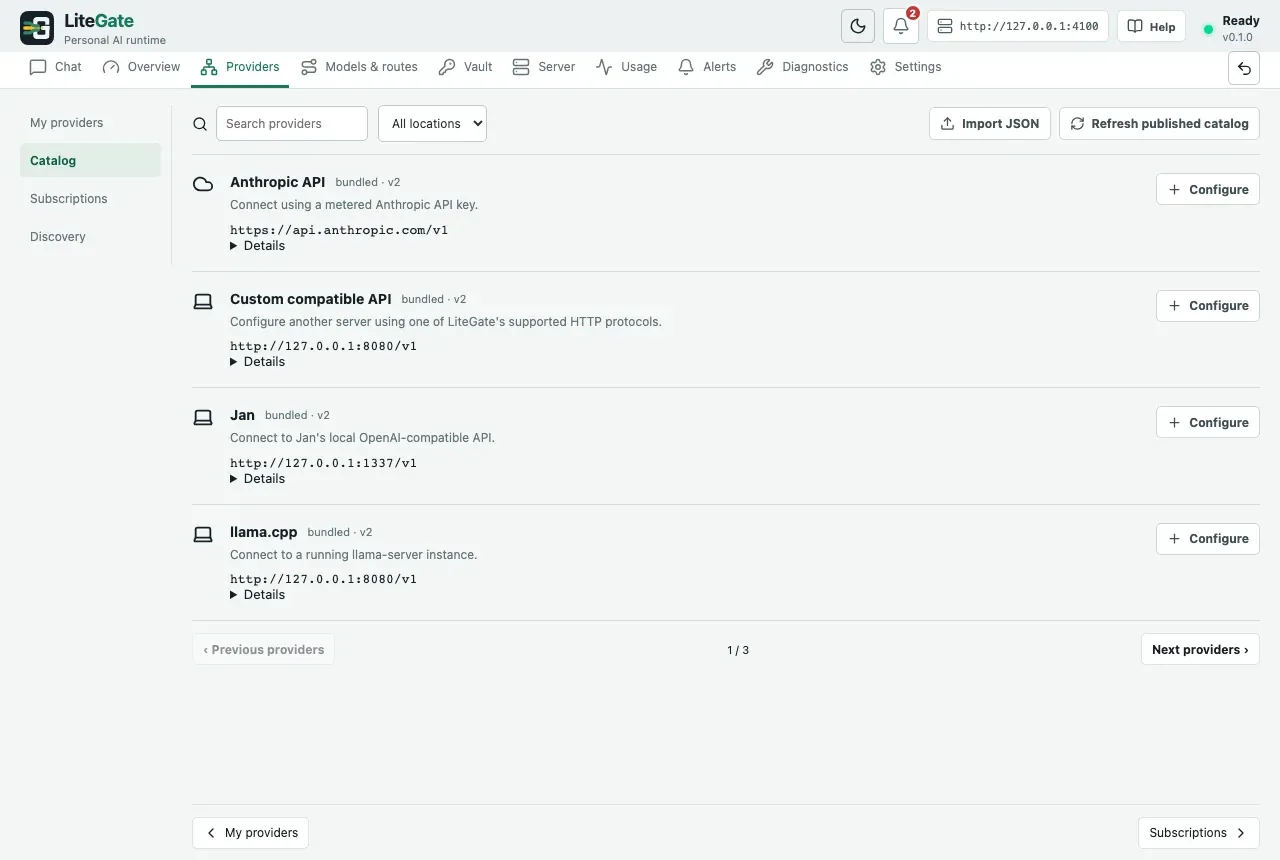
Real development UI with demonstration data: templates are not active connections.
- Open Catalog, search by name and filter Local / Cloud. Each template shows its initial endpoint, revision, source and compatibility notes.
- Choose Configure to open setup with its defaults. Review the endpoint and authentication; enter a key only in connection setup.
- Save the connection, then select its available models in Models & routes. No model is added automatically.
- Choose Refresh published catalog to check the official catalog. Existing connections remain unchanged and templates are cached locally. Local / Local-only mode blocks this request; bundled and imported templates remain available offline.
- Alternatively, download an individual template from the published provider directory and choose Import JSON. Review its name, endpoint, protocol and authentication. Add to catalog imports the template without activating a connection. Choose Configure afterward.
Templates contain data for supported HTTP protocols only. Passwords, API keys, scripts, commands and executable paths are rejected. The complete index is for catalog refresh; Import JSON accepts a single provider template. Older revisions and changed templates with the same revision are rejected.
Demonstration import: review the values before confirming. Importing creates no connections or models.
4. Add a cloud API (optional)
Section titled “4. Add a cloud API (optional)”A paid ChatGPT Plus/Pro or Claude Pro/Max account is not an API key. API-billed usage requires a separate key from the provider.
- In Providers > Add provider, choose OpenAI API key or Anthropic API key under Preset.
- Review Location: Cloud, Base URL, Protocol, and Authentication. Enter the secret only in LiteGate’s API key field, never in the alias or URL.
- Click Save provider. In Add model, choose a model from that provider’s catalog and confirm its alias. Repeat from Models & routes > Add model to add more. There is no upstream name to enter manually.
- Test that alias in Chat. A Configured credential means it was stored, not that the provider accepts that model or your account has remaining quota.
This screenshot contains no real key. Use the shield icon to delete only the credential; the trash icon deletes the provider itself.
5. Use a personal subscription (optional)
Section titled “5. Use a personal subscription (optional)”Under Providers > Add provider > Preset, choose ChatGPT subscription or Claude subscription. This uses an official Codex or Claude Code runtime bundled with LiteGate, or a compatible official installation you select. It is neither an API key nor OAuth independent of that runtime.
- Choose Bundled official to avoid an external installation; Existing installation is optional.
- If Review terms appears, open the provider documents and confirm the account ownership, personal-use, and compliance statements. LiteGate is not affiliated with OpenAI or Anthropic.
- With Bundled official, click Connect and complete the official sign-in flow when it opens. With Existing installation, the chosen runtime must already have a valid session; Activate checks and uses that session. Do not type your provider password into LiteGate.
- Inspect Consumer subscription. In Add model, choose a model reported by the runtime’s catalog and save the alias you want to use in Chat. Connecting a subscription creates neither a
defaultmodel nor an automatic alias. Aliases saved in earlier betas are preserved.
The Compatible state shown here is synthetic. Your screen reflects the runtime and authentication state on your machine.
Confirm all four declarations: your own or authorized account, compliance with provider terms, no sharing or resale, and no bypassing limits or access controls. Accept and continue becomes available after all four are checked. The screenshot records no real acceptance; read the agreements applicable to your account before proceeding.
For probe-failed or unsupported-version, check the account and runtime version, and switch between bundled/external only when the other runtime is verified. Disconnect removes LiteGate’s local credential; for complete remote revocation, also use the provider’s account security page. Do not share or resell a personal subscription through network server mode.
In Discovery, Cannot start means the compatibility probe could not launch; Missing capabilities means the runtime lacks required isolation controls; Not verified or Unknown version blocks activation until verification succeeds. Prefer the bundled runtime if an external one fails. Application logs provide details without requiring you to expose credentials.
6. Set up models and routes
Section titled “6. Set up models and routes”In Basic, use Setup guide → Choose model to open models for a saved provider. Technical fields are under Advanced model settings. For routes, choose All settings… or switch to Advanced.
A provider is the connection. A model is a LiteGate alias pointing to an upstream name. A route is an alias with candidates and a selection mode. This separation lets you change providers without renaming a model in every client.
Add a catalog model
Section titled “Add a catalog model”- Open Models & routes > Add model. Select Provider; changing it reloads the catalog for that connection.
- Wait for Available model to load. Select an entry rather than inventing a model name. Already added marks registered models with their aliases; those entries are disabled to avoid duplicates.
- Review Alias. This is the name Chat and clients select, not a credential. For example, keep
local-fastas your stable alias when changing local engines. - Review the fields below. Do not enable tools or vision merely because a checkbox exists.
- Click Save model. Expected result: a new Models row and an alias available in Chat. Adding a provider does not remove or replace existing models.
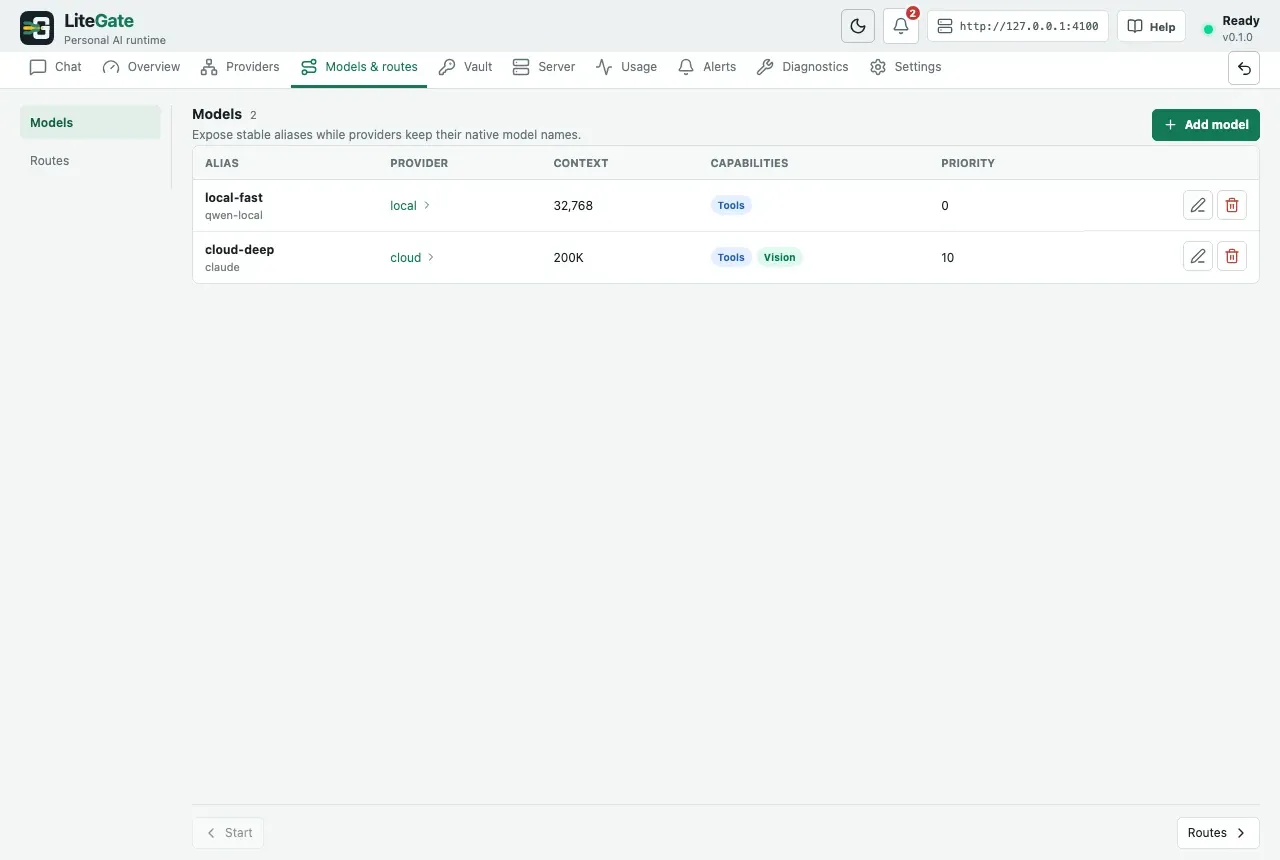
| Field | How to choose |
|---|---|
| Context tokens | Configured input limit. Respect the provider’s actual capacity; this does not expand its context window. |
| Priority | Candidate priority; lower values are preferred when ranking by priority. |
| Tool calling / Vision input | Enable only capabilities supported by the model and connection. Compatible subscriptions allow client-tools; their transport does not support vision. |
| Protocol conversion | Click i to read the explanation in the form. Start with Strict. |
Strict rejects conversions that lose information or alter meaning. Compatible allows supported adaptations with warnings but still rejects essential unsupported features. It cannot make every model compatible.
Edit models and troubleshoot catalogs
Section titled “Edit models and troubleshoot catalogs”Click the pencil in a model row. Current marks its saved model. An old model can be retained even when no longer advertised; that does not guarantee the provider still accepts it. Delete with the trash icon after confirmation, unless a route references that model.
The refresh icon queries the catalog without generating a chat response. If it fails or is empty, check server, URL, credentials, and account session, then retry. No free-text field bypasses a failed catalog. Cloud and subscription catalogs are blocked in Local mode or with Local only enabled. Change that policy only when you intend to permit remote access.
Capabilities and generation settings
Section titled “Capabilities and generation settings”The catalog distinguishes supported, unsupported and unknown tools/vision capabilities from provider metadata. Selecting a model fills the controls from those declarations; missing metadata leaves them off until manual confirmation. Catalog lookup performs no inference and is not an empirical compatibility test. Subscription bridge capability is distinct from model capability; not every external runtime version supports tools.
Under Models & routes → Edit model → Generation defaults, optionally set Temperature (0–2), Top-p (0–1), Maximum output tokens and Reasoning effort (low/medium/high). Blank preserves client/provider settings; explicit client values win. Each destination, including fallback, uses its own defaults. Configure only parameters accepted by that model. Subscription bridges reject these defaults; choosing effort does not turn a non-reasoning model into a reasoning model.
Client-tools from external applications
Section titled “Client-tools from external applications”Use a Client tools key, enable tools on the model and choose a compatible provider/bridge. The client sends definitions, receives a call, executes the tool and returns its result with the complete history. In this external-client flow, LG relays tool calls and the client executes them. The development Chat MCP loop is described below.
The initial subscription relay supports tool_choice: auto, text context/results and one call per response. Preserve history, instructions, tools, model and options; streaming preference may change. Sessions stay in memory, expire after 120 idle seconds and are limited to two simultaneous sessions and 32 segments. Start a new conversation after expiry, restart or incompatible changes. Full agent feature parity is not guaranteed. Usage is estimated; a client output-token maximum is not a native subscription generation limit. Privacy and Vault restrictions remain in force.
Create an optional route
Section titled “Create an optional route”- Under Routes, click Add route after adding its candidate models.
- Give it an alias distinct from model aliases, choose Ordered fallback to start, and add at least one candidate. The first is preferred; use the arrows to reorder.
- Click Save route, then select it in Chat. Edit with the row’s pencil or delete with the trash icon after confirmation.
With Ordered fallback, candidate 1 is attempted first. Later candidates are eligible fallbacks, not a mid-response switch after output is visible.
7. Choose an operation mode
Section titled “7. Choose an operation mode”Chat uses the same public gateway as third-party clients. The mode is remembered per conversation and does not change global policy.
| Mode | Selection | Third-party model field |
|---|---|---|
| Manual | Choose one concrete model. Failure never silently substitutes another model. | Configured model ID |
| Local | LG selects and falls back among eligible local models. | litegate/local |
| Cloud | LG selects and falls back among eligible cloud models. | litegate/cloud |
| Auto | LG can select any eligible local or cloud model. | litegate/auto |
Operation aliases appear in /v1/models when permitted candidates exist and work with Chat Completions, Responses and Messages. Key permissions, capabilities, budgets and availability still apply. Local only, in Settings → Default routing, blocks cloud even in Manual or Auto; Cloud fails if no permitted candidate exists. Provider fallback stops once response output has begun.
Auto uses the embedded deterministic classifier to rank candidates. Routes can also use ordered, auto or Authorized (authorized). Authorized prefers eligible local models and permits cloud only when the provider’s Allow in Authorized mode setting (authorized_allowed in TOML; authorizedAllowed in JSON templates) is enabled. This is explicit provider approval, not PII protection or a verification of the provider’s privacy practices. It is also available under Settings → Default routing → Default routing mode, where its cloud restriction applies to all requests. There is no alias for its former name or permission field. The default selection policy applies to configured routes; a concrete model or operation alias expresses the client’s selection without bypassing hard restrictions. Global Local mode also enforces the local restriction.
8. Try the built-in Chat
Section titled “8. Try the built-in Chat”Use the Show formatting icon to expand or collapse the composer toolbar; visibility is remembered. Bold (Cmd/Ctrl+B) and Italic (Cmd/Ctrl+I) toggle Markdown formatting on the selection and can be combined. Sensitive uses a shield icon (Cmd/Ctrl+Shift+S); Insert secret uses a key (Cmd/Ctrl+Shift+K). The secret picker inserts a reference, never the secret value.
- Open Chat and click New chat. The panel icon next to the title hides or shows history, preserves your draft, and remembers your visibility preference.
- Choose Manual, Local, Cloud or Auto in the header. Only Manual displays a concrete model selector.
- Type a simple question and click Send.
Entersends andShift+Enterinserts a newline. Wait for a response. If none arrives, do not assume the alias is usable: inspect Diagnostics and the provider. - Open the small disclosure beneath the response to see the selected model, fallback attempts, latency, and available token counts. Send a second turn to confirm context is maintained.
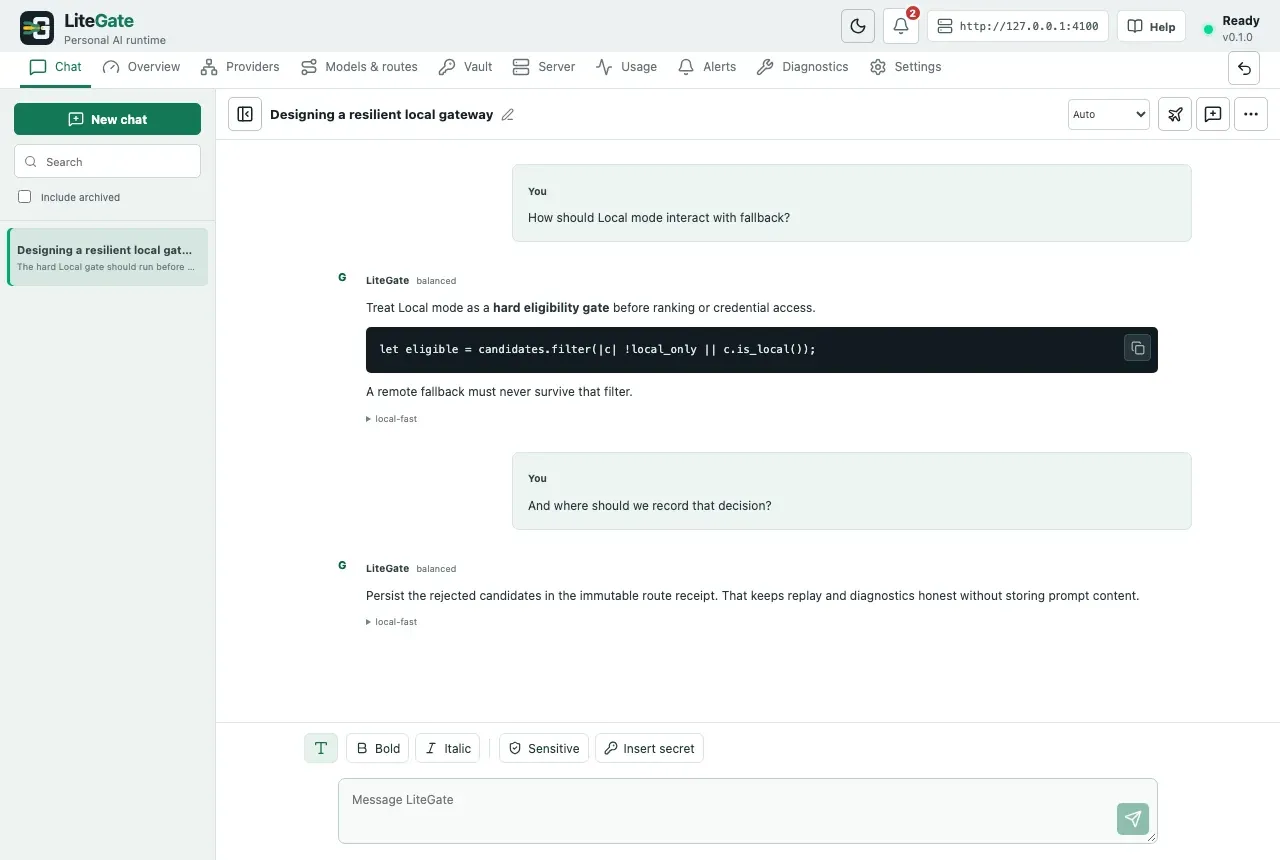
The conversation is fictional. The provenance beneath each answer identifies the model that produced it.
You can search, rename, archive, delete, and export conversations as Markdown/JSON. Editing a user turn or regenerating an answer creates branches; Branch appears when more than one exists. The stop button or Esc cancels an active generation.
When an answer fails
Section titled “When an answer fails”Chat explains recognized failures and includes the stable error code, HTTP status and Request identifier when available. Review provider opens the connection to inspect; Diagnostics opens checks and logs. Keep the request identifier to correlate the failure. Raw upstream error messages are not displayed in full because they may contain sensitive data.
Simulated error in the real UI. This example requires changing the provider from OpenAI Responses to OpenAI Chat, not changing Strict/Compatible.
When an answer has already started, LiteGate preserves partial text and reports the interruption. It does not automatically resend a request that already produced output. Inspect the cause before sending again.
Chat renders supported LaTeX expressions. Expand the model annotation below a reply to inspect throughput (tok/s) and available usage measurements. When a provider or model has a configured budget, its remaining percentage can appear; no budget means no budget indicator. Diagnostic request IDs belong in request details, not the normal chat footer.
Reasoning while a response arrives
Section titled “Reasoning while a response arrives”Chat shows Thinking and provider-exposed reasoning in a monospace font while waiting for answer text. When the answer begins, the active block disappears and remains collapsed under View reasoning. LG invents no reasoning and displays no encrypted or opaque content; some providers expose only a summary. Without reasoning data, no additional reasoning text appears.
Reasoning is stored separately and is not replayed as an answer to the next model. JSON export includes the separate field; copying the answer or Markdown export excludes it. Protected-conversation export restrictions still apply. RC15 uses SQLite schema 14: retain a backup and its OS-held keys before upgrading; do not open the migrated database with an older RC.
RC15 Chat executes the supported tools/MCP described below; attachments remain pending.
9. Connect Codex, Claude Code, or VS Code
Section titled “9. Connect Codex, Claude Code, or VS Code”For a client on the same computer, start with Diagnostics > Client connections:
- Find the client and expand Preview changes. Read the target configuration path and proposed patch.
- Click Connect. LiteGate applies a reversible user-level configuration patch. If it fails, the screen reports the error; do not repeat the action blindly.
- Restart or reload the client if it caches configuration. Select LiteGate’s endpoint/model in that client’s UI and send a test request.
- To undo only LiteGate’s patch, use Restore on the same row. Actual compatibility depends on client version and capabilities; routing through LiteGate does not automatically enable all client tools or MCP features.
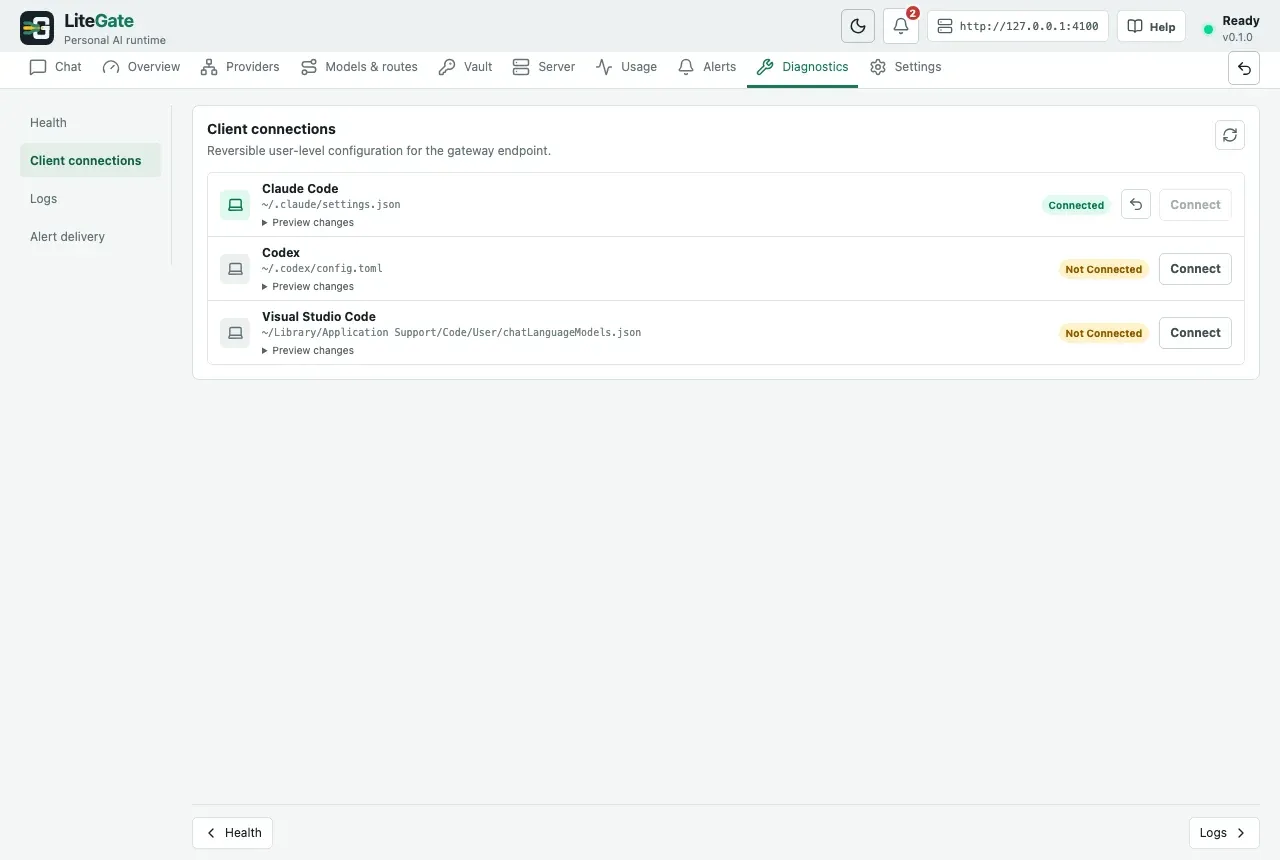
The sample Connected row does not mean your installation is connected. Inspect each client’s actual state.
Gateway traffic
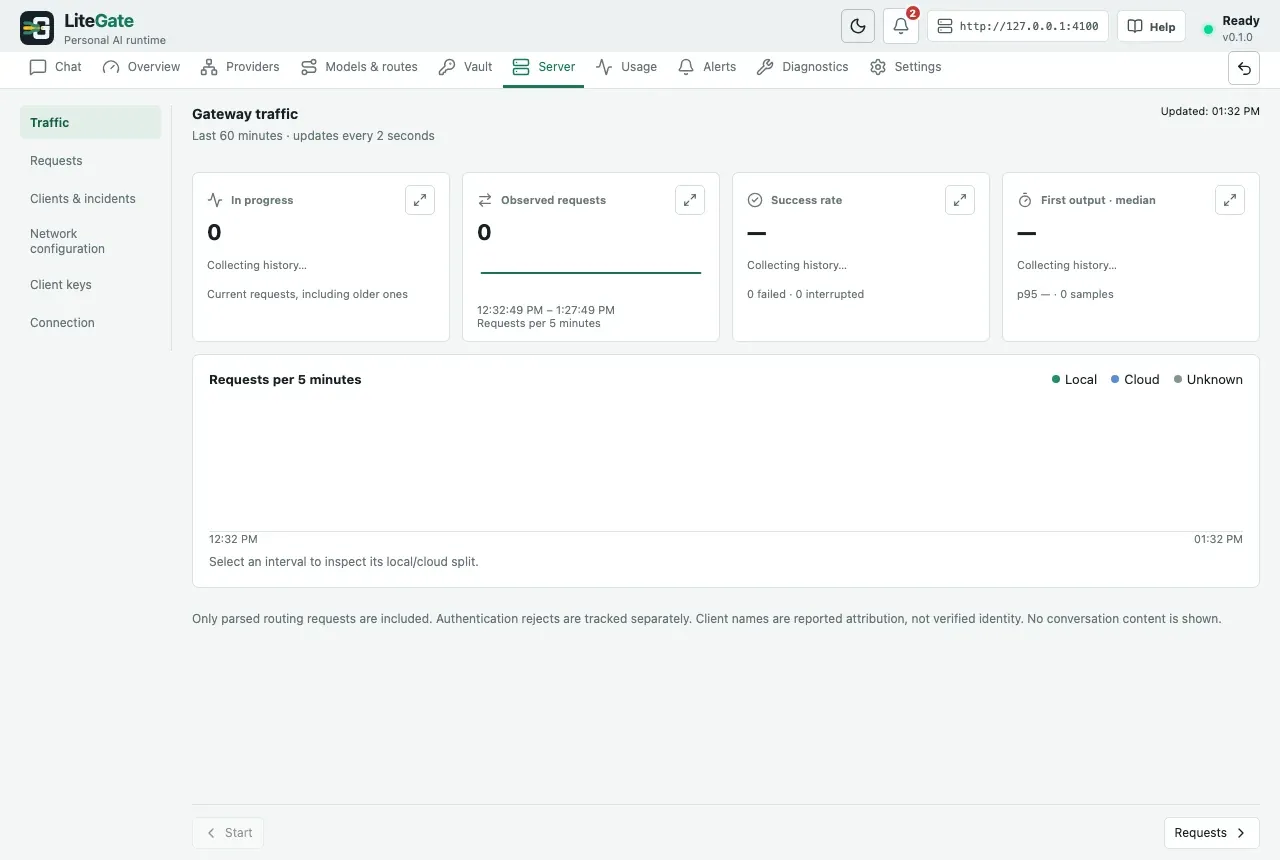
Section titled “Gateway traffic”Open Server → Traffic. The dashboard refreshes every two seconds and shows:
- Current requests, last-hour request count and success rate among finished requests.
- Median and p95 time to first output, with the number of timing samples.
- Five-minute request bars split into local, cloud and unknown destinations. Select a bar to inspect it.
- Active or recent requests with client, model/provider, elapsed time and output tok/s when a completed measurement is available. Click the client to inspect route, protocol, attempt and diagnostic ID.
- Settled input/output tokens by client and recent incidents, including recovered fallbacks.
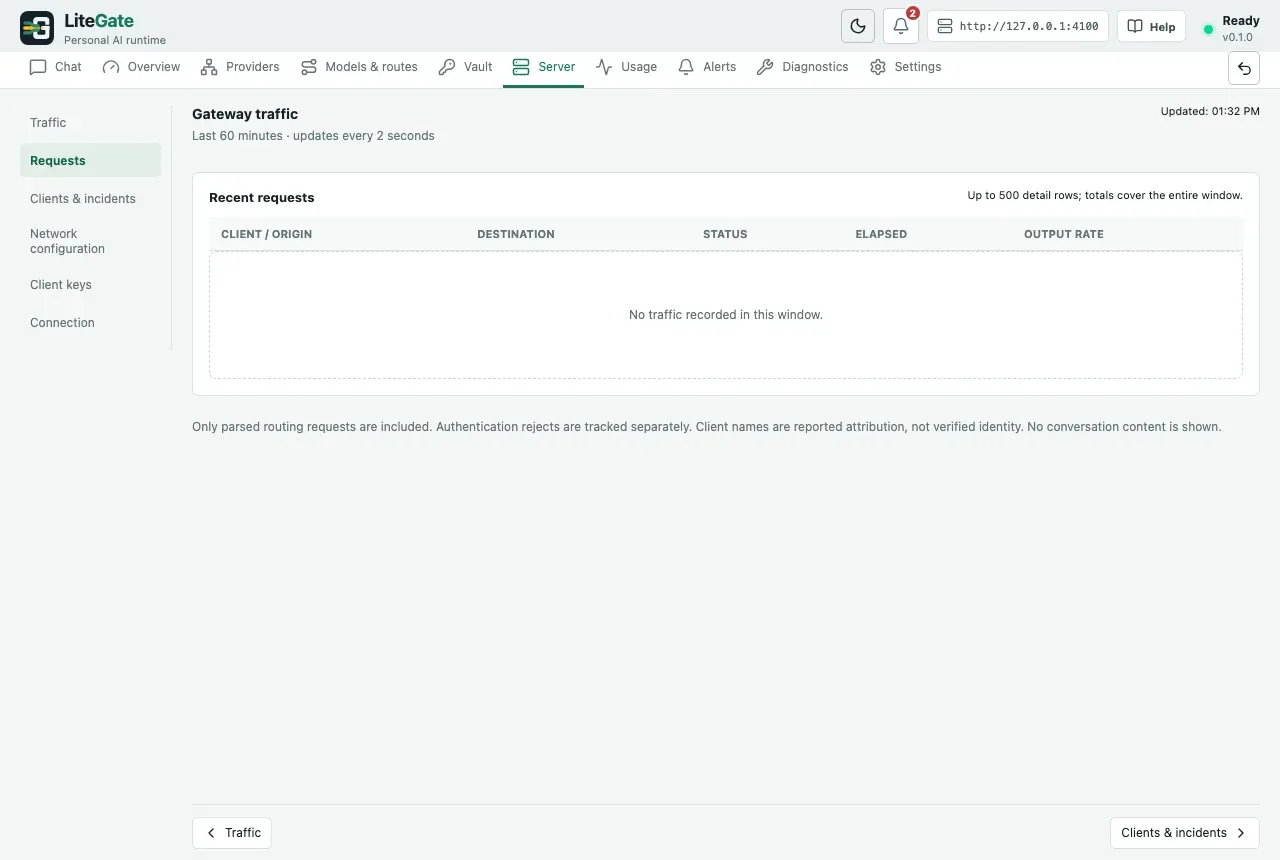
Totals cover the whole hour; detail rows are limited to 500. Estimated usage is labelled; missing measurements are shown as unknown rather than zero. Authentication rejects are tracked separately. No conversation content appears here, and reported client names are not verified identities.
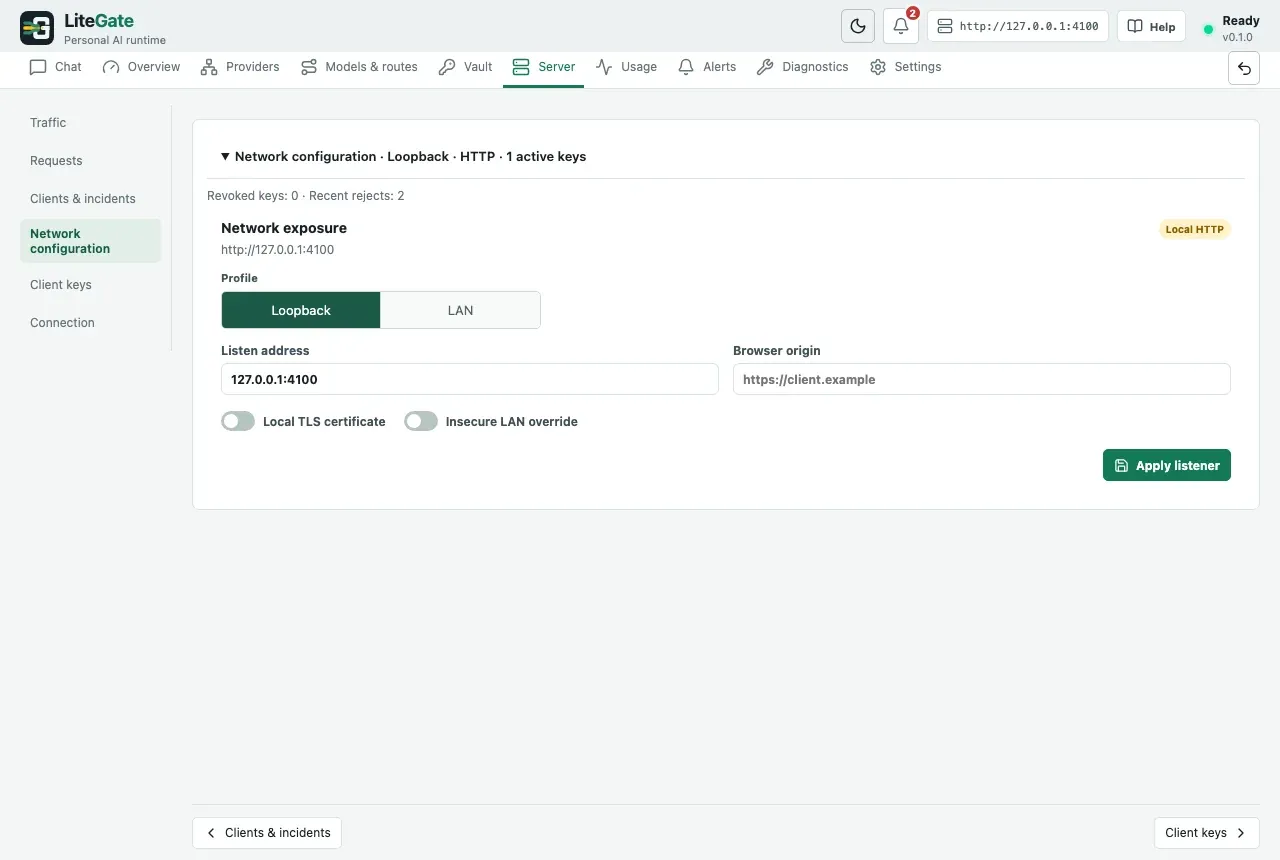
Server separates Traffic, Requests, Clients & incidents, and Network configuration. Select Network configuration for Loopback/LAN, address and TLS; Client keys groups existing keys and the New key dialog; Connection explains client access.
10. Enable LAN and create a client key (optional)
Section titled “10. Enable LAN and create a client key (optional)”To use LiteGate from another computer, open Server → Network configuration. Keep Loopback when network access is unnecessary; it listens only on the host. For LAN:
- Set Profile to LAN, configure Listen address, review the firewall, TLS, and Browser origins when using a browser client. Click Apply listener. Do not expose the port directly to the internet. Clients must trust the local certificate if you enable TLS; Insecure LAN override reduces that protection.
- Under New client key, set a recognizable label and purpose. Choose Execution profile: Chat only rejects tool-bearing requests; Client tools permits tools managed by the client under policy.
sandboxed-agentis not available yet. - Restrict models, routes, providers, and only when needed, subscription bridges. Set per-minute rate, concurrency, quotas, and expiry. For a personal subscription over LAN, accept the disclosure and limit the key to your own use under provider terms.
- Click Create key and save the secret in the client: it is displayed once. Configure the current LAN endpoint and key in the remote client. Revoke the key under Client keys when no longer needed.
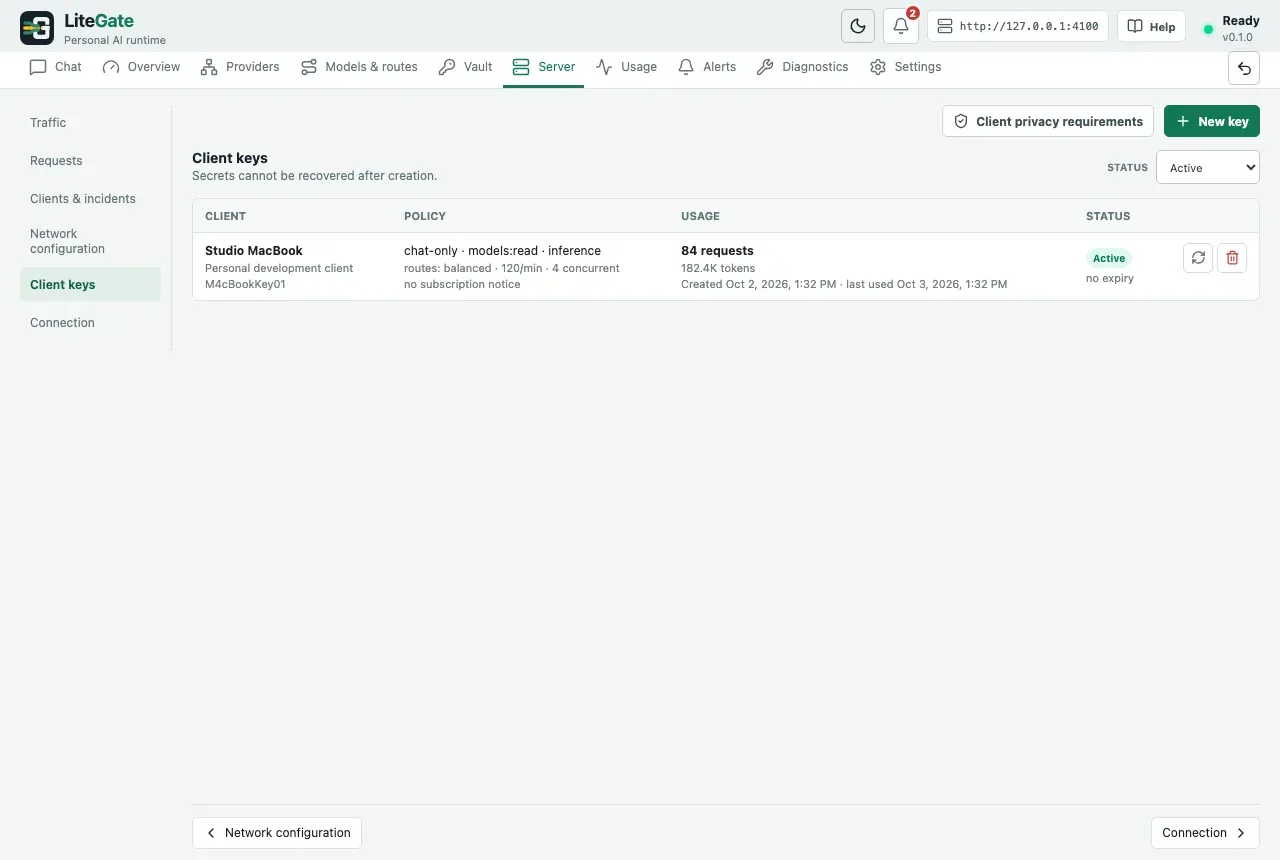
Client connection offers a URL and client examples. The app’s local control plane is separate from the inference endpoint. Every remote client needs a valid LiteGate key.
The execution profile is fixed when issuing a key; issue a replacement and revoke the old key to change it. Client tools cannot enable tools in a chat-only bridge. Personal ChatGPT LAN access also requires enabling it on the provider and acknowledging the key disclosure. Claude remains loopback-only in this beta, even with subscription permissions on the key. Acknowledgement does not override provider terms or technical restrictions.
11. Review usage
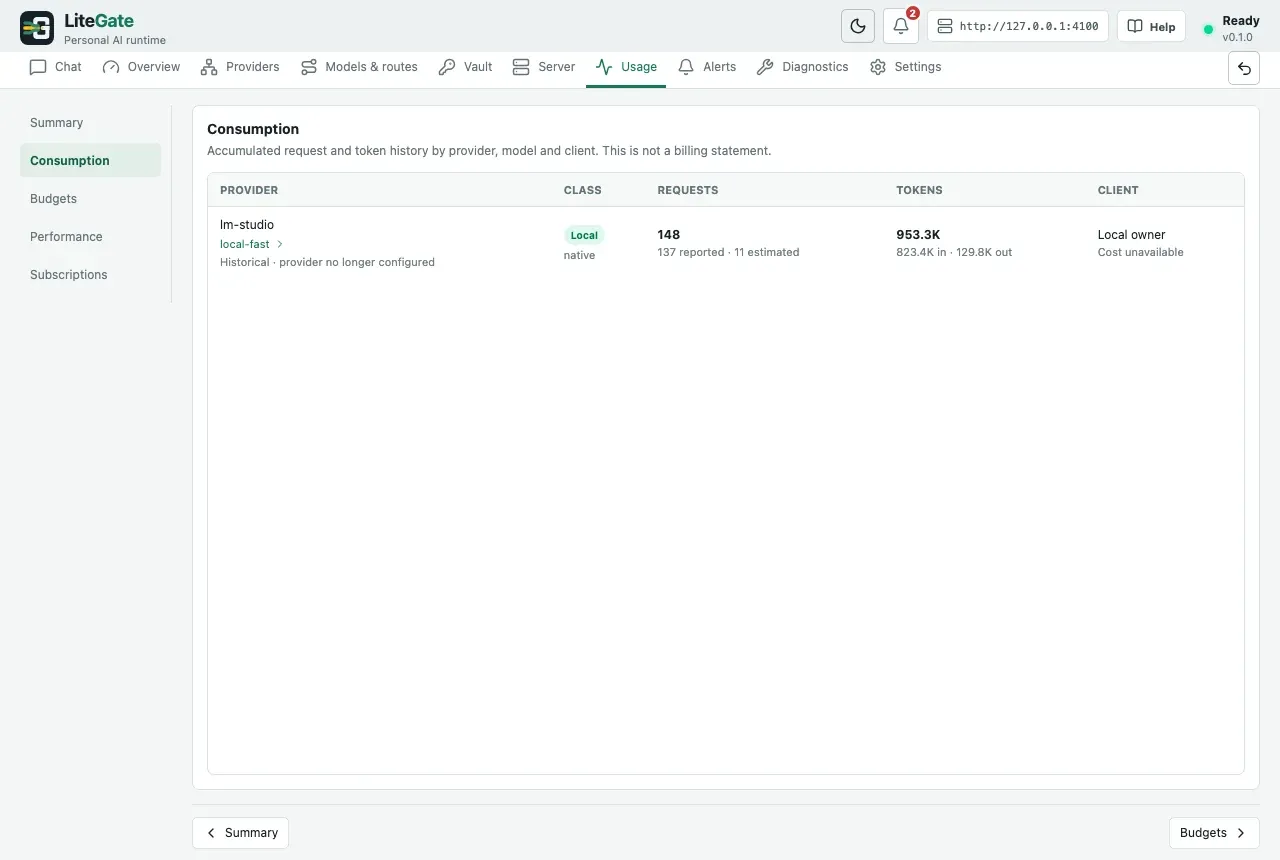
Section titled “11. Review usage”Consumption breaks down recorded requests and tokens by provider, model and client. It separates provider-reported counts from estimates and local, API and subscription traffic; it is not an invoice. Records from removed providers remain historical usage. Test traffic can remain in your local database: the app does not invent rows or erase them automatically. Tables use the available height and paginate.
Under Usage, inspect requests and tokens attributed by provider, model, and client key. Input, output, cache, and reasoning are separate; some counts are provider-reported and others estimated. The view only counts traffic through LiteGate, not all activity on an external account. If it says Cost unavailable, do not infer an exact bill from token counts.
Select Summary, Consumption, Budgets, Performance or Subscriptions in the vertical subsection rail.
Provider and model budgets
Section titled “Provider and model budgets”LiteGate supports both provider and model token budgets. Choose the scope when adding a budget: a provider budget covers its models, while a model budget covers one alias. Both limits apply when configured together. Warning/block policies and daily, weekly, monthly or lifetime periods are independent at each scope. These are LiteGate token budgets, not the provider account’s monetary bill or subscription allowance.
Create a model budget
Section titled “Create a model budget”- Under Model token budgets, click Add budget. At least one model alias must be configured; each alias can have one budget.
- Select Model, set Token limit and choose Period:
daily,weekly,monthlyorlifetime. Calendar periods reset in UTC;lifetimehas no recurring reset. - Set Warning (%), for example 80. Under At limit, choose Warn only to keep accepting requests with a warning, or Block new requests to reject new admissions that cannot fit within the budget.
- Click Save budget. Inspect the limit, usage, reservation, remaining balance, status and reset time. Use the pencil to edit or the trash button to remove the budget; neither removes the model or its usage history.
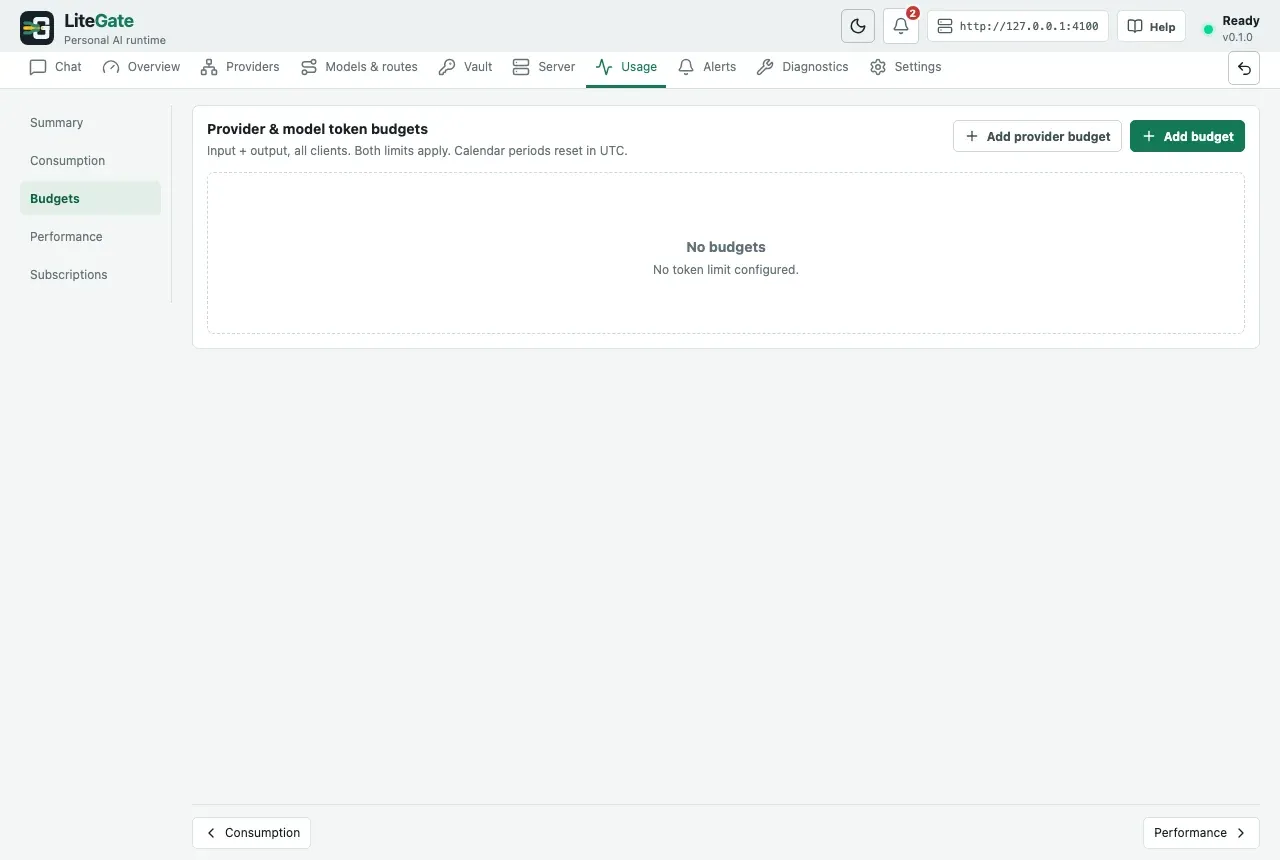
The budget counts input plus output from all clients for that model alias. Cache and reasoning are subsets, not tokens added a second time. Reserved refers to admitted requests that have not completed; Estimated identifies estimated counts, and Uncertain means interrupted work without a confirmed final count.
Blocking reserves estimated input plus the output cap, or the configured context ceiling when there is no output cap. A new request may therefore be rejected even with apparent remaining balance. Provider counts can exceed estimates: this is not an exact spending guarantee. Existing streams are never interrupted or rerouted at the limit; another request may use an eligible fallback when its route permits.
Inspect performance
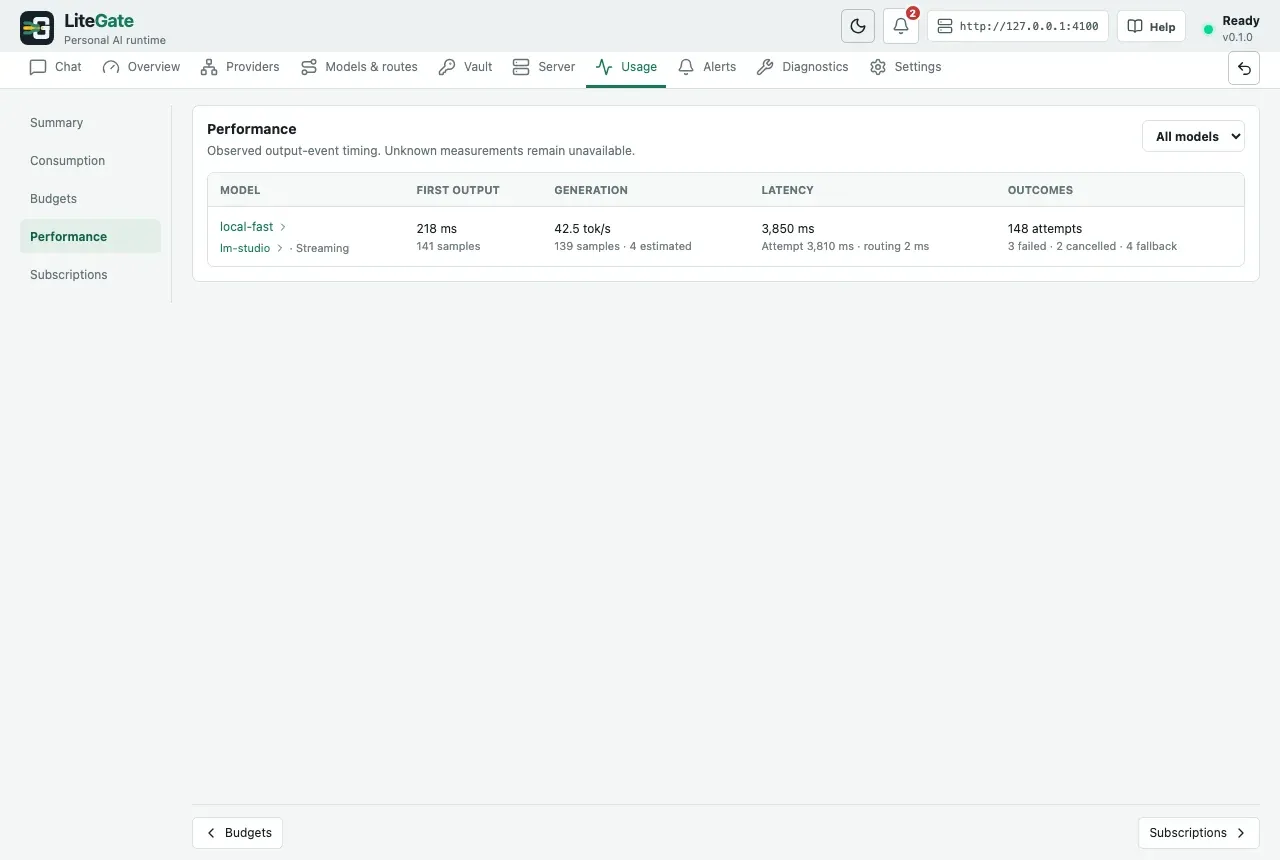
Section titled “Inspect performance”Under Performance, filter by alias to compare First output, generation speed, latency, and failed, cancelled or fallback attempts. Timing is observed from gateway output events. Missing measurements appear as Unavailable, not zero; estimated throughput samples are identified separately.
Check subscription limits
Section titled “Check subscription limits”Subscription allowance appears when a subscription is configured. For ChatGPT/Codex, click Check allowance: the official runtime may report account-window usage percentages, remaining allowance and reset times. This explicit lookup is blocked in Local / Local-only mode and does not generate a chat answer.
Account limits are separate from local budgets and may include other tools. Unknown values do not mean zero. If the runtime cannot provide the data, the UI says so. The Claude bridge does not expose this lookup yet; inspect usage in Claude Code or your account. Alerts can use fresh results from explicit allowance checks; automatic account polling is not implemented. Native notifications require opt-in and operating-system permission.
12. Check health
Section titled “12. Check health”In Diagnostics, click Run checks. Doctor examines active configuration, SQLite, the operating system credential store, and the inference data plane without sending your prompt content. Resolve a failing check before returning to Chat; then test the exact route you intend to use. A healthy check does not guarantee that an external provider has quota or accepts your upstream model.
Application logs shows correlated desktop, daemon and CLI events, including when the daemon is unavailable. Export diagnostics creates a local folder containing a manifest, a merged timeline and validated source records; nothing is uploaded. It excludes conversation text, credentials, configuration, the database and raw provider output. On macOS, rolling logs live in ~/Library/Logs/com.silverbacking.litegate/operational/; exports are under the adjacent exports/ directory. Logging is bounded and best effort: reported gaps or dropped deliveries mean the history may be incomplete. Remove exported folders yourself when no longer needed.
The CLI provides the same offline inspection with litegate diagnostics and export with litegate diagnostics --export NEW_DIRECTORY. The destination must not already exist.
The Diagnostics screenshot shows client connections; checks are under Health. If Ready appears but Chat fails, check in this order: local engine running, URL/port, upstream alias, credential, Local only, and route eligibility.
13. Settings, updates, and data
Section titled “13. Settings, updates, and data”Resource protection
Section titled “Resource protection”Settings → Resource protection shows native daemon/desktop memory usage and separate automatic or custom preventive/critical limits. New work pauses under pressure. A critical limit requests shutdown, then forces the affected process to stop if cleanup stalls. Interrupted requests and tools are never replayed. After a protective daemon stop, review the incident and limits, save any change, and choose Restart daemon explicitly. Invalid saved limits fall back to the automatic profile instead of preventing startup.
Limits are sampled intervention thresholds, not guaranteed allocation ceilings. External model servers are excluded. WebView responsiveness is monitored, but reliable WebView memory attribution and native platform qualification remain pending. An emergency UI reload can lose an unsaved draft; committed history is preserved. Resource protection is included in RC15; wider native-platform qualification remains pending.
General puts Gateway port, Launch at login and Airplane mode first. Port edits require Save; appearance, startup and airplane switches apply immediately. Airplane mode summarizes the current state, with details available on demand. Appearance and the introduction are secondary. The header sun/moon icon switches Light/Dark; choose System again in Settings to follow the OS.
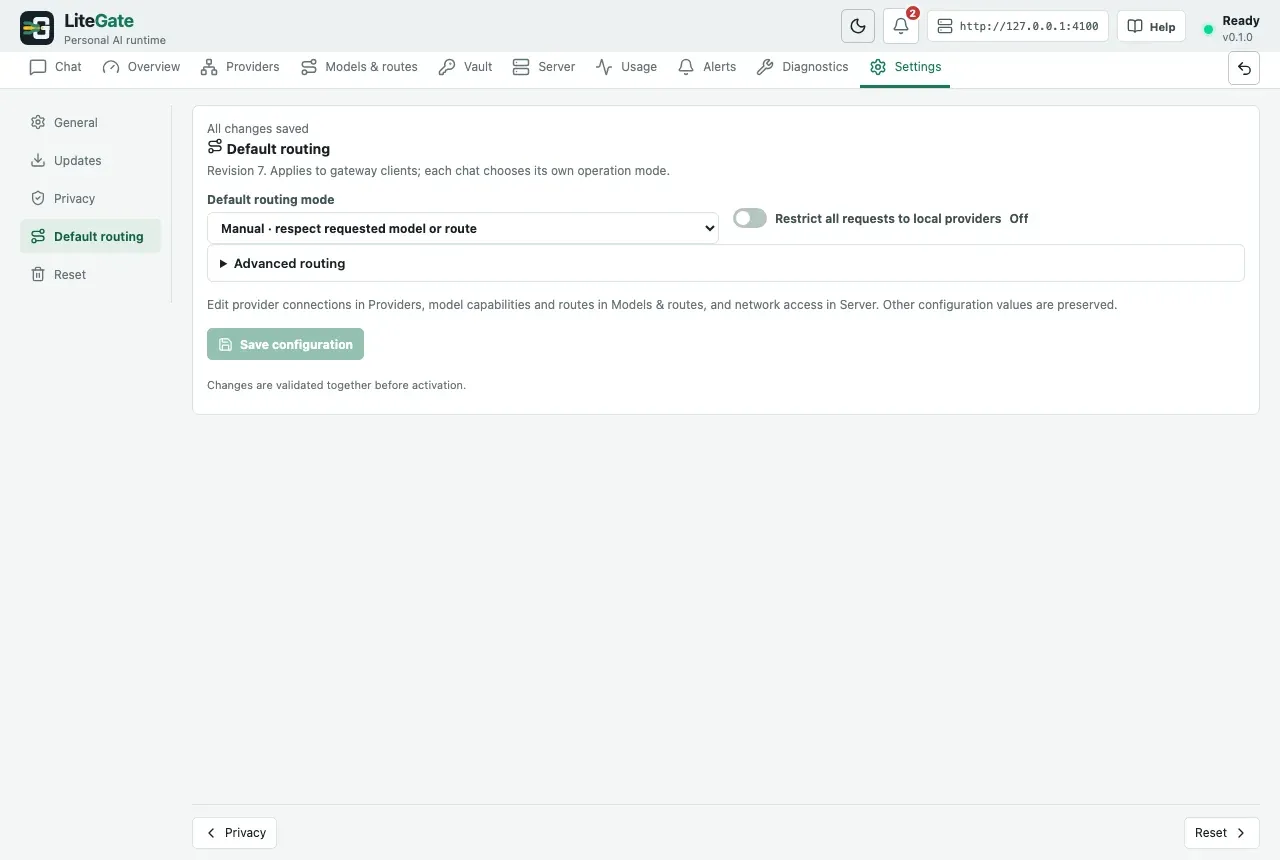
Check now reports when no downloadable update is available, distinguishes failures, and explains when a private build has no automatic update channel. Default routing groups routing policy; classifier details are expandable and its confidence margin uses basis points (100 = 1%). Reset contains permanent data deletion.
Under Settings → General → Appearance, choose Light, Dark or System. Changes apply immediately and persist across restarts. System is the default and follows changes to your computer’s appearance; Light and Dark override it.
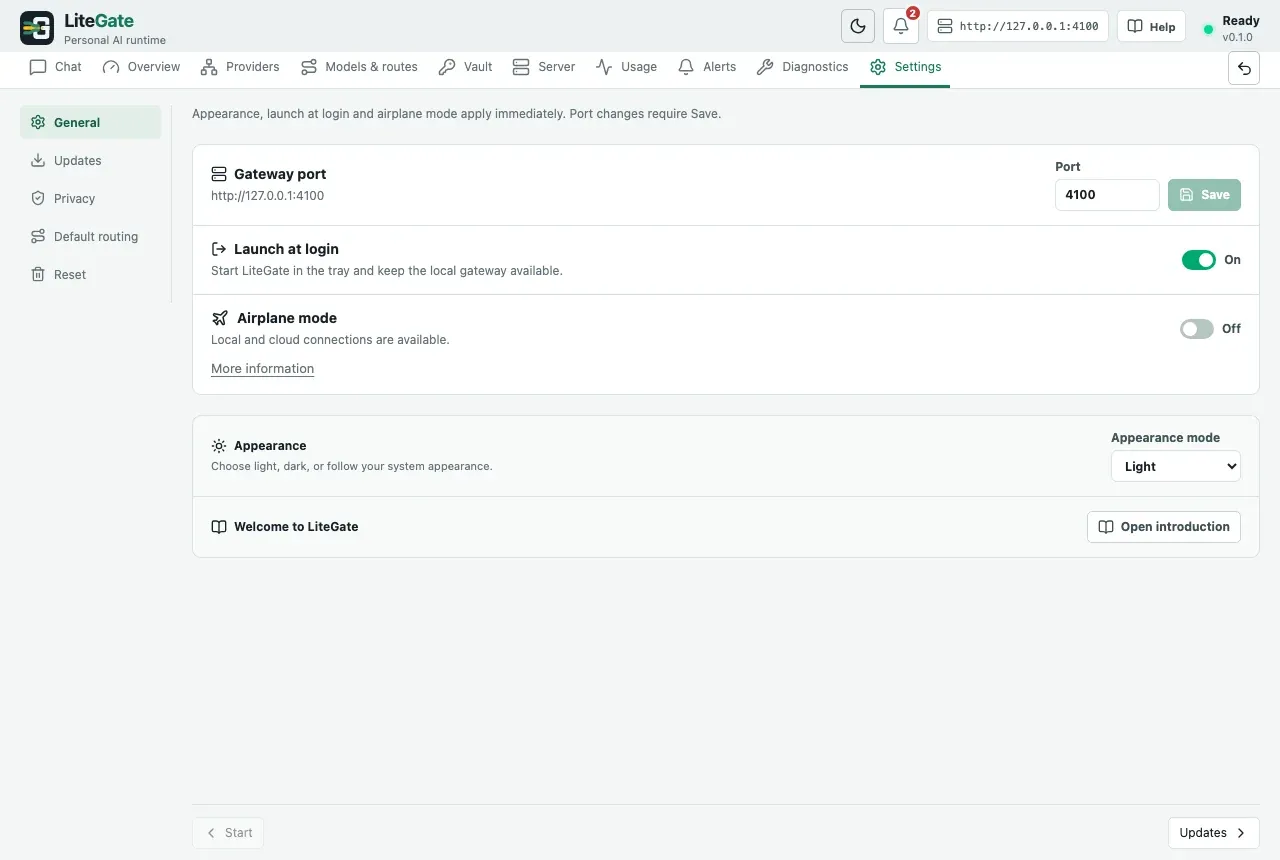
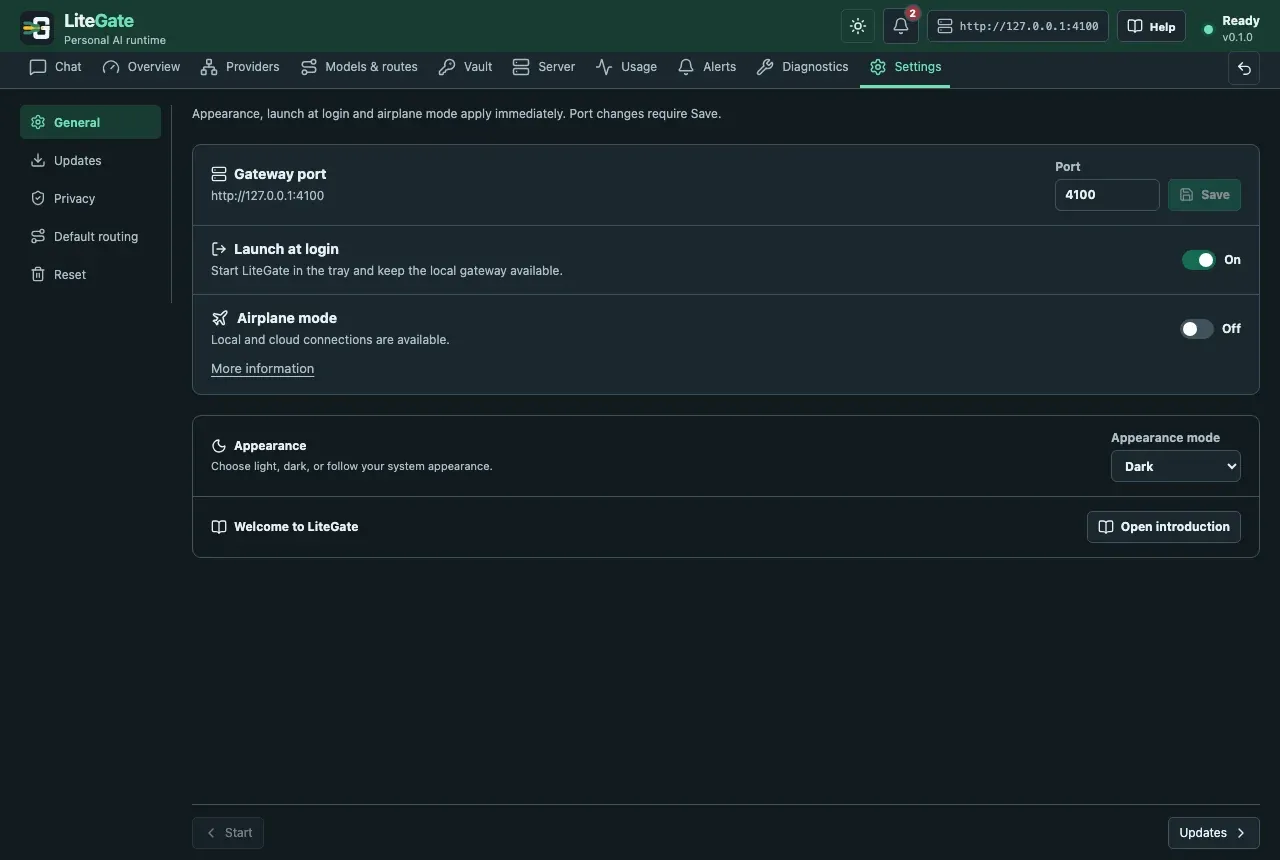
In Settings, enable Launch at login, reopen the welcome flow with Open introduction, or change Gateway port. When the port changes, or LiteGate starts on an alternate occupied-port fallback, reconnect clients still using the old URL. The complete header address reflects the active port.
Updates lets you select Stable/Beta and check for signed updates when the build has a channel. RC15 announces no public automatic update; Developer ID signing is separate from updater signing. Under Settings → Default routing, edit the default mode, local restriction, classifier and confidence margin using visual controls. Save configuration validates and activates changes together, preserving all other values. Providers, models, routes and network access have dedicated forms.
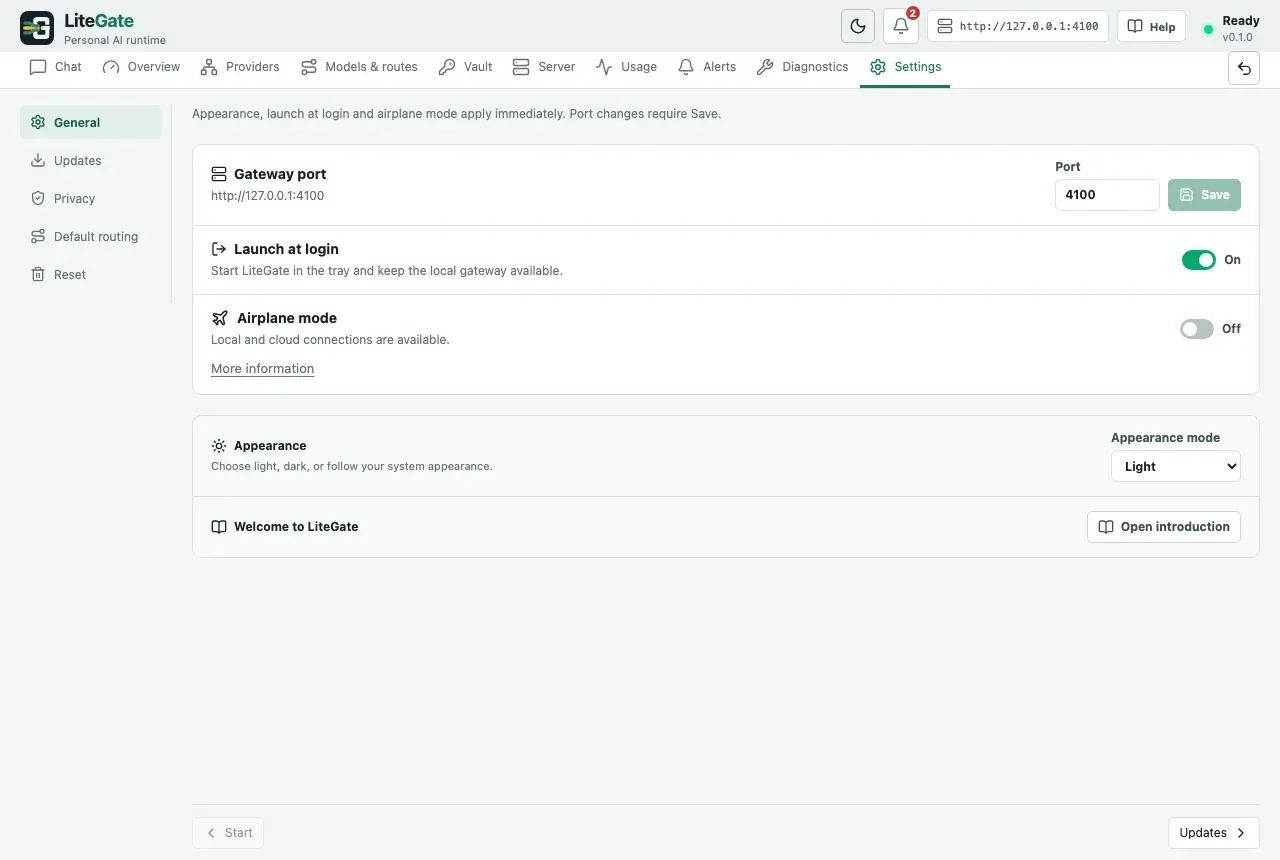
Delete LiteGate data is permanent: review the inventory and confirmation phrase before using it. It removes conversations, usage, configuration, backups, keys, and credentials. Uninstalling or replacing the app does not normally erase this data.
Notifications and alert preferences
Section titled “Notifications and alert preferences”- Select the bell in the header to open Notifications. Its badge counts unread incidents. Use All / Unread / Active, category and severity filters.
- Review the affected model, actual fallback destination and outcome. A normal Auto selection is not a fallback. A stream interrupted after output starts cannot silently switch models; use Inspect providers to investigate.
- A budget alert distinguishes used, reserved, uncertain and estimated tokens. Insufficient budget capacity can mean a reservation will not fit, not that the provider billed the full limit. View usage opens the accounting screen.
- Use the envelope, muted bell and checkmark actions to mark read/unread, mute the incident or resolve it. Resolving does not change routing or budget policy. Mark all as read updates the badge; the trash action requests confirmation before deleting alert history, without deleting conversations or accounting.
- For a gateway failure, Application logs opens local Diagnostics even if the daemon cannot be reached. Alert delivery health lists overflow and storage-failure counts.
In Alerts, use Channels, Rules, Quiet hours, Exceptions and History to configure delivery, filtering, silence and retention. Channels includes an illustrative notification preview. Click Save preferences to apply. Quiet hours use your computer’s timezone and require both times; an overnight interval such as 22:00-07:00 is supported. Set 1-hour pause and Clear pause edit the pending preferences; click Save preferences to activate them. Clearing a pause keeps quiet hours; Clear quiet hours removes the interval.
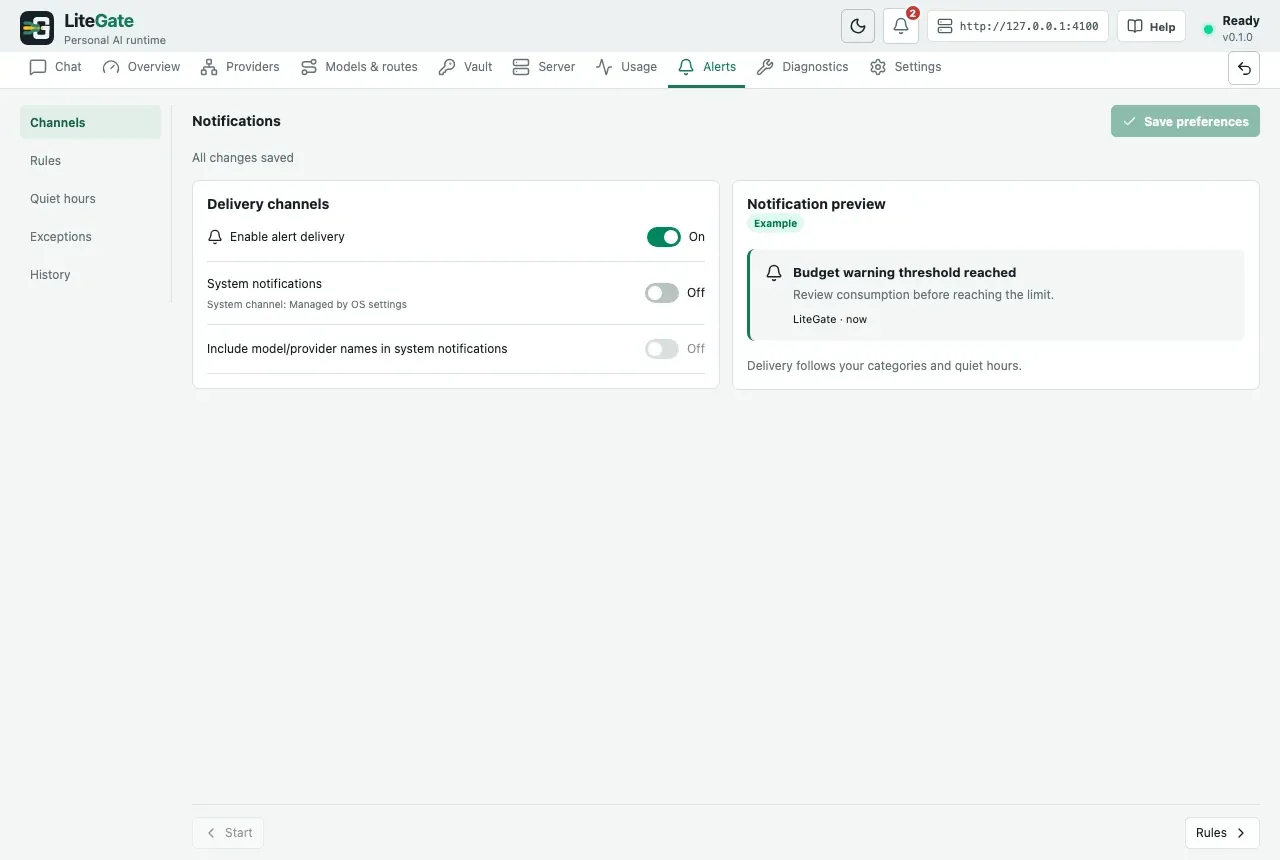
System notifications are off by default. Enable them explicitly; detailed model/provider names are a separate privacy opt-in. OS settings, Do Not Disturb and native channel support determine visible delivery: Managed by OS settings is not proof that permission was granted or a notification displayed. The helper must remain running for native delivery; a stopped app retains history for its next launch. Quiet, muted or old incidents do not replay as a notification storm.
History is limited to 1,000 incidents and defaults to 30 days, adjustable from 1 to 30. Turning off Enable alert delivery suppresses both in-app and system delivery but retains history. Turning off Keep local alert history and saving deletes the stored alerts, not usage or conversations. Events contain no prompts, responses or credentials.
Subscription warnings require a recent explicit official allowance query in Usage. The initial threshold is 80%, with escalation at 90% and 100%; there is no automatic polling. Missing/stale allowance data stays unknown, not an estimated token cap. Claude allowance remains unavailable through the current bridge.
14. Optional CLI
Section titled “14. Optional CLI”The CLI is a separate per-platform archive; dragging the app from the DMG does not install it in your PATH. If you receive the beta CLI archive, extract litegate and run it from its directory or place it in a command location you control. Start the app/daemon first. If the control port is not the default, set LITEGATE_CONTROL_ENDPOINT to the control address for your installation.
litegate control statuslitegate control discoverlitegate control providerslitegate control providers models PROVIDER_IDlitegate control catalog listlitegate control catalog show unslothlitegate control modelslitegate control usagelitegate control integrations listlitegate chatlitegate chat opens a text conversation; /model ALIAS changes the destination, /history displays the thread, and /exit quits. litegate chat help and litegate control help list other commands. Enter credentials through stdin, never command-line arguments. Official subscription sign-in and update dialogs are currently handled in the app.
Replace PROVIDER_ID with the identifier returned by litegate control providers. providers models queries the provider catalog; control models lists aliases already added to LiteGate. Querying a catalog does not register models.
Use litegate control catalog refresh to update templates and litegate control catalog import --file PROVIDER.json to import a downloaded template. litegate control catalog template unsloth --as unsloth prints TOML configuration for review; it does not activate a connection or add credentials. Local mode blocks remote catalog refresh.
After beta.7, litegate control alerts list prints history and preferences as
JSON; alerts read-all acknowledges the history and alerts clear deletes it.
alerts update ID --file UPDATE.json accepts read, resolved and muted
booleans. alerts preferences --file PREFERENCES.json applies a full preference
document copied from the preferences object returned by alerts list.
These commands require the owner control credential, not a client’s inference key.
When something goes wrong
Section titled “When something goes wrong”| Symptom | First checks |
|---|---|
| Daemon unavailable | Open View logs, read the startup error, and try Retry. Doctor requires the daemon to reconnect. |
| No models configured | Add a connection in Providers; confirm its alias in Models & routes. |
| Local service missing | Start its server, verify port/URL, and use Add provider > Test and discover. |
| Available model empty or failed | Check URL, authentication, and server; refresh. Saving a provider does not guarantee an accessible catalog. |
| Already added model | Use the existing alias or edit its row; the same upstream does not need registering again. |
| Remote catalog blocked | Check Local and Local only; these policies also block cloud catalog queries. |
| Credential missing or rejected | Check secret, authentication, upstream name, quota, and provider terms. |
| Subscription probe-failed or unsupported-version | Check account, official runtime, and compatible version. |
| Chat fails in Local mode | Confirm the route has a local candidate; cloud fallback is blocked. |
| Unsloth rejects streaming Responses with MLX | Edit the provider and change Protocol to OpenAI Chat. Keep its URL, credential, and aliases. |
| Response failed | Read the explanation and retain the code, HTTP status, and Request ID. Review provider opens the connection; Diagnostics helps correlate the request. Raw upstream messages are not displayed to avoid exposing sensitive data. |
| Interrupted partial response | Received text is preserved. Review Diagnostics before resending: LiteGate does not automatically repeat an already-started response. |
| External client cannot connect | Check current endpoint, Preview changes, key, profile, TLS, and firewall. |
| No updates | RC15 has no announced public update. |
For publication status and platform requirements, see Installation and updates and Product and status.
Sensitive data privacy
Section titled “Sensitive data privacy”Enable and preview protection
Section titled “Enable and preview protection”- Open Settings → Privacy, use the On/Off switch, then select manual, Basic or Advanced detection. The switch edits a draft: the effective status changes only after Apply privacy settings succeeds. Advanced-only options appear when that level is selected.
- Choose opening/closing markers (default
@@) and retention days, then Apply privacy settings. Policy changes cancel active cloud requests; they cannot retract earlier disclosures. - Try synthetic text such as
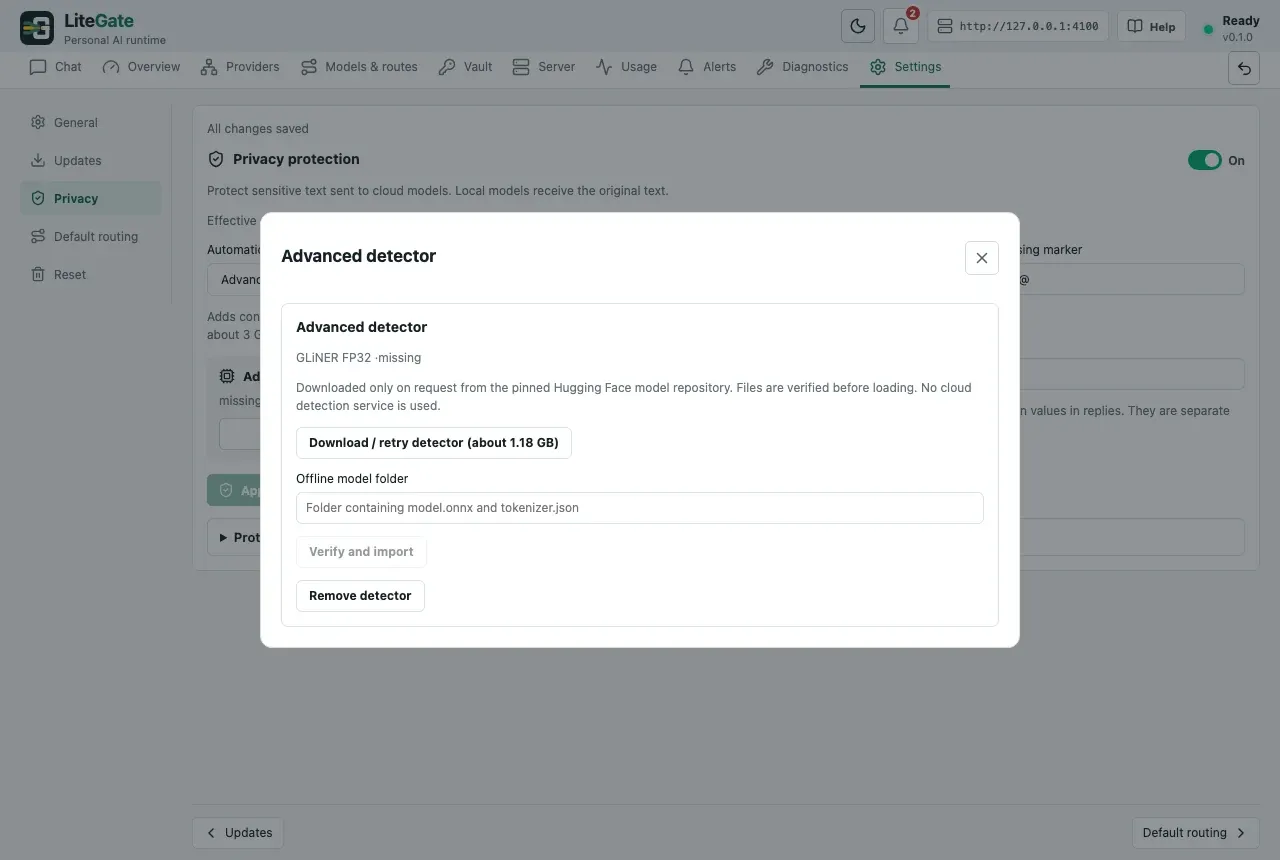
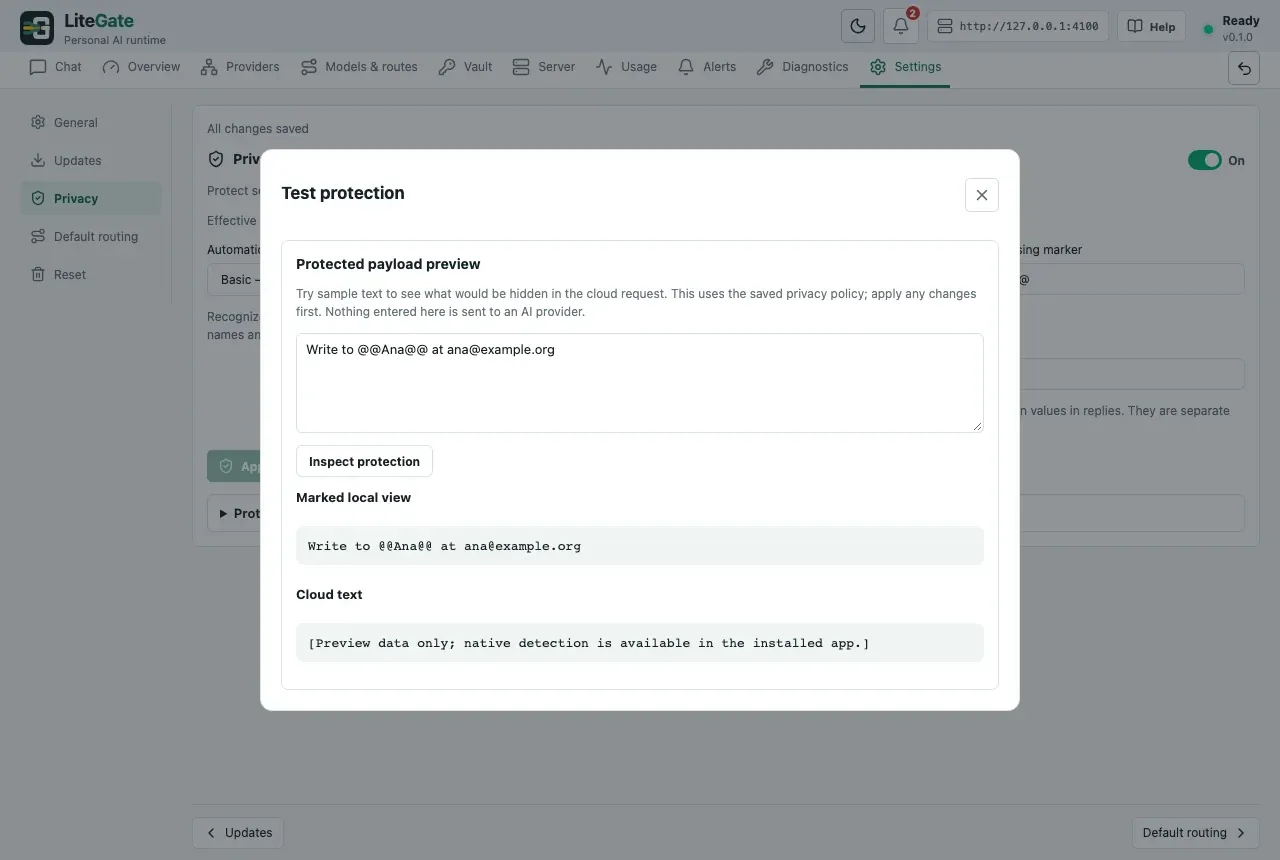
Call @@+34 612 345 678@@ to confirm the appointmentin Settings → Privacy → Test protection, then Inspect protection. Compare the marked local view and protected cloud text. The preview does not contact an AI provider. - Under Settings → Privacy → Manage detector (visible with Advanced detection selected), explicitly download GLiNER or import a folder containing
model.onnxandtokenizer.json. LG checks pinned hashes before loading. The FP32 files total approximately 1.18 GB, with about 3 GB working memory; long contexts may add seconds. Missing or failed required protection blocks cloud sends.
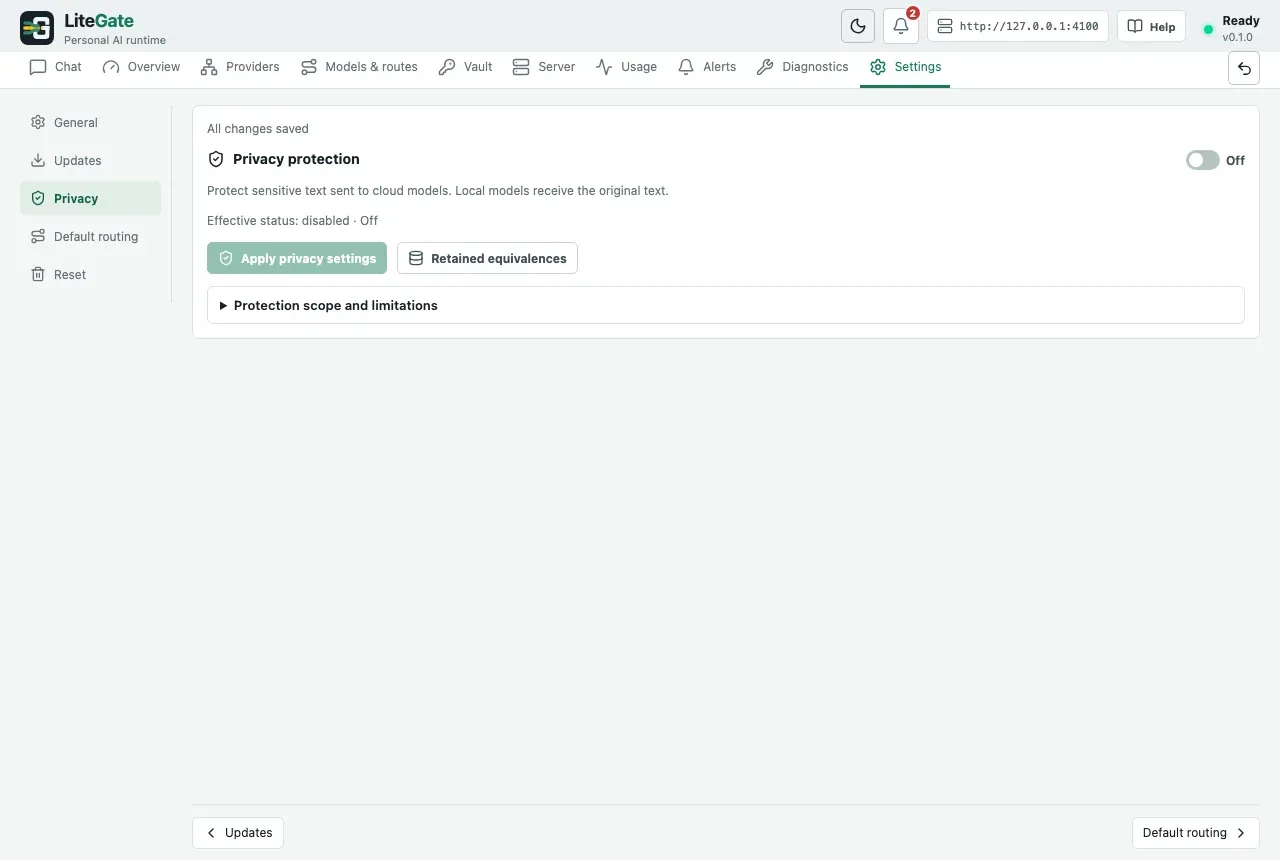
Protection depends on the destination
Section titled “Protection depends on the destination”LG preserves original client context and prepares a protected copy before cloud dispatch, including retries. Local models receive original values. Local-only and airplane restrictions continue to apply. Provider authorization controls eligible destinations; it does not itself remove PII.
| Level | Detection | Download |
|---|---|---|
| Manual | Explicit spans such as @@sensitive data@@, with configurable delimiters. |
None. |
| Basic | Manual marking plus local patterns/checks for structured identifiers. | None. |
| Advanced | Basic plus contextual GLiNER entity detection. | Explicit optional download/import. |
Basic supports email, phone numbers, IP addresses, payment cards; Spanish DNI/NIE and IBAN; Mexican RFC, CURP and CLABE; US SSN, and labelled identifiers/dates where supported. Structural/checksum validation applies where available, not proof of identity. Unusual formats can be missed. Free-form names and addresses need manual marks or Advanced. The context-selection model is not the PII detector.
Manual marking remains available in every level. Prefix a literal delimiter with a backslash to escape it. Unclosed, empty or nested markers block protected cloud sends. Never assume unmarked text is safe simply because no detection appears.
Stable mappings and responses
Section titled “Stable mappings and responses”Opt-in retained contexts use an encrypted local vault, with a key in OS credential storage. Identical values reuse an opaque pseudonym within the same authenticated conversation/branch; there is no global mapping across users. LG Chat opts in. Other clients must opt in with x-litegate-privacy-retain: true and supply x-litegate-conversation-id (and optionally x-litegate-privacy-branch, default main); authenticated client identity remains part of the scope.
Only identifiers authorized for the current request can be restored. Sensitive spans use the configured markers; LG Chat displays a colored background and shield icon. The tray indicates enabled or unavailable protection. Separate local/cloud request activity colors are not delivered.
Configure retention in Settings → Privacy → Retained equivalences. These are encrypted associations between original values and replacement identifiers, not general conversation memory. Use Forget all privacy contexts to remove them. Stricter client policies are under Server → Client keys → Client privacy requirements. A key cannot weaken host policy. Deleting an LG chat removes its retained branch scopes. Existing chat history and exported files have independent retention. Forgetting a table cannot retract a provider’s earlier messages.
Limits and remaining work
Section titled “Limits and remaining work”- Required privacy blocks unsupported tools, images, structured schemas, opaque state, remote token-count requests and cloud subscription bridges. Supported protected text tool continuations are described below. Local destinations remain unaffected by substitution.
- Protected streaming buffers each text block before detection/restoration; displayed output may be delayed.
- Placeholders are generic opaque identifiers. Typed labels, partial disclosure and preservation of original format remain future options. Hidden dates/amounts cannot support accurate calculations on their original values; use local processing for that work.
- The separate vault remains in place during updater recovery; main SQLite backups do not include it. Backup/rotation UX remains pending. The encryption-key envelope write limit is 1,000,000.
- Independent detection/utility quality gates and native Windows/Linux privacy validation remain open. Only local macOS beta evidence is claimed.
Detection can miss identifying data or flag harmless text. Reversible pseudonymization does not encrypt all cloud content or guarantee anonymity.
Separate configuration tasks
Section titled “Separate configuration tasks”Open the detector and test dialogs from Privacy; use Server for network settings and requests. All values below are demonstration data.
Secret Vault
Section titled “Secret Vault”This feature is included in the private app; it does not announce
a new public download. Open Vault → New secret, choose a name and add fields
such as username, password or token. Stored values are never returned to the
editor: leave a field blank to keep it or enter a replacement. Renaming an entry
preserves its references.
In Permissions, authorize clients and exact destinations for each entry. New entries have no grants. Authorize LiteGate Chat to use the picker and select recipient models, including local ones. Changing the endpoint or model requires a new grant. The website label is organizational; it grants no access and does not constrain later tool actions. An authorized model and the harness receiving its tool arguments may learn the real value.
In Chat, Insert secret or Cmd/Ctrl+Shift+K opens the searchable entry/field picker. It inserts a reference, never the value. Select text and use Sensitive or Cmd/Ctrl+Shift+S for ordinary PII marking. These are separate actions. Activity shows access metadata and blocks without prompts or values.
If a request is blocked, review its entry, client permissions, effective destination and OS credential storage in Diagnostics. Subscription bridges do not support Vault references. Fallback checks its own permissions. Deletion invalidates references; it cannot erase old backups or recall delivered secrets.
After first Vault use, LG encrypts newly written messages and chat titles, replacing known values with references before encryption. Protected chats cannot be exported to plaintext; search is title-only and previews hide content. Existing history is not retroactively encrypted. Retain the OS key with backups: copying the database alone cannot recover secrets on another machine.
New in RC15 — October 25, 2026
Section titled “New in RC15 — October 25, 2026”RC15 includes the Basic and Advanced interfaces and setup guide, plus optional recoverable compaction of historical document-tool results. The signed, unnotarized Apple silicon package passed 78 packaged-daemon checks: 21 for tool compaction, 37 for virtual context and 20 for cache behavior. These use isolated profiles and synthetic loopback traffic; they establish runtime and transport behavior, not generative answer quality or clean-machine installation acceptance. Public distribution remains pending.
Recoverable document-tool compaction
Section titled “Recoverable document-tool compaction”When a conversation includes a long earlier document lookup, LG can send useful original passages for the current question instead of repeating the entire result. A small local language model, shared with virtual context and memory, selects the excerpts before LG builds the active window. This can leave more space for useful context and reduce repeated input. It does not generate a summary or replace the original history: the answering model can search and read the complete original during the request, even when no messages were omitted.
Only older, completed plain-text results from read_document, web_search and search_documents are eligible. The current question, latest exchange, tool calls, arguments, IDs and order remain intact. Errors, mixed or structured results, privacy-transformed sources and sources needed by declared dependencies retain their original text. Other tools and MCP aliases are not assumed compatible. Privacy and Vault protections still apply to every model call and retrieval.
To enable it:
- Open Settings → Virtual context, using All settings… if needed in Basic, and enable virtual context.
- Set LG context and each model’s working window using the virtual-context instructions. Use a text model that supports tools; external client keys need
context:virtual:v1. - Enable Dynamic context compaction (experimental) and choose Save changes. It defaults to off and uses the existing shared local model; no additional model download is introduced. If virtual context has not installed that model yet, wait for its download and loading to finish.
- Send a question in a conversation containing a supported earlier document result. Review Recent virtual-context requests for the active-window estimate, model calls and history lookups. Short or unsuitable results may remain unchanged.
LG accepts excerpts only when the complete outgoing request, including recovery tools, instructions and references, saves at least 10% and 512 conservative wire bytes and fits the active window. These are byte-based estimates, not measured provider-token savings. If selection is unavailable, busy, unsuitable or uneconomical, the existing request path remains in use. Accepted compaction buffers final streaming while internal retrieval runs. Retrieval and additional model calls also consume time and tokens; a smaller window is not a guarantee of lower total usage or equivalent answers.
Turn the option off and save to disable it globally. Chat’s Controls can disable it for one conversation; external clients can send x-litegate-compaction: off. A conversation cannot enable it against a disabled global setting. For repository configuration, the existing field is [virtual_context].dynamic_compaction = true with virtual context enabled.
New in RC14 — October 19, 2026
Section titled “New in RC14 — October 19, 2026”This section records features available in RC14 and retained in RC15, with current setup instructions. Public release qualification remains pending. Existing screenshots illustrate earlier controls and may omit newer settings.
Virtual context
Section titled “Virtual context”RC15 adds optional recoverable document-tool compaction under Dynamic context compaction (experimental).
Visual guide: how virtual context works — one conversation explained in three steps: preserve, ask and retrieve.
LiteGate can expose a larger context to clients than the working window of the selected model. It preserves the original request, keeps a bounded active window and recovers relevant omitted history. This is retrieval, not native attention over the entire context or a generated summary.
- Open Settings → Virtual context and enable the feature.
- Set LG context, then each model’s Working window, no larger than its native capacity or LG context. Leave room for output, retrieval and the safety margin.
- Save changes. If needed, LG automatically downloads the shared small local language model (about 488 MB). Progress, cancel and retry are available here and under Memory. Files are verified before loading; verified files are reused, while an interrupted file restarts on retry. Airplane mode blocks downloads. A verified local directory can also be imported under Memory.
- Use a text model with tools support. External client keys need the explicit
context:virtual:v1scope; existing keys gain no new permission automatically. The scope allows recovery only from the current request, not from permanent memory. - Review Recent virtual-context requests for original/active estimates, omitted messages, model calls, history lookups, fragments selected locally and outcome.
The small local language model combines semantic similarity with lexical matches to select exact fragments before the first model call. It does not rewrite the history. The model can then search and read omitted history through internal tools. If the local model is unavailable or selection cannot finish, history tools remain available; answer quality then depends more on the model using them. Memory and virtual context share one embedding worker, with Metal on supported macOS builds and CPU fallback. Downloading weights does not send conversations to the model repository. Enabling virtual context does not enable permanent recording.
When a selected message is short enough, LG prefers reading it completely if the whole evidence selection still fits. This helps preserve the context of corrections without discarding other selected evidence. When LG has recovered complete consecutive messages, it preserves their original roles and order so the model can follow corrections more clearly. Multiple exact pages can reconstruct a message only when nothing is missing. Partial evidence remains labelled as retrieved history, and every continuation must fit the configured window. This does not guarantee the model will interpret every conversation correctly.
Repeated retrieval replaces or evicts complete old evidence batches instead of growing the active window indefinitely. Limits bound model calls, lookups, retrieval size and total admission. Required content that cannot fit causes an explicit error. Privacy and Vault checks still apply before dispatch.
Current limits: admission uses conservative UTF-8 wire-byte estimates plus framing, not the provider’s tokenizer. Virtualized requests require compatible text tools; subscription bridges, images, structured output and forced/disabled tool selection are unsupported. When virtualization is needed, final streaming is buffered until generation finishes; ordinary requests that already fit retain normal streaming. Context retrieval does not execute external client tools.
Initial evaluation: 18 synthetic cases, twice per mode, produced 36/36 exact answers with native local retrieval, 32/36 with full context, and 8/36 with history tools alone. Local retrieval used 56% fewer input tokens than the full-context baseline; median latency was 6.7 versus 19.6 seconds on one LiteLLM-backed model. Two full-context failures were formatting-only. Full inputs were only 2,284–3,313 provider-reported tokens: this is not a 128,000-token validation, a universal quality guarantee or a clean-install test. The debug evaluation process reached about 1.3 GiB RSS; download size is not a RAM limit. Long-context, sustained-memory and broader provider qualification remain pending.
Permanent conversation memory
Section titled “Permanent conversation memory”Under Settings → Memory, enable Save conversations automatically to capture supported text exchanges from LG Chat and external clients passing through the gateway. Capture is optional and separate from virtual context. Text and embedding vectors are encrypted in a separate local SQLite archive with a key held in the OS credential store. System instructions, private reasoning and complete attachment/structured-tool content are not archived as general conversation text; captures can be partial or skipped when limits are reached.
Enabling capture starts the same local model download if needed. Search remains available lexically while semantic indexing is unavailable. Inspect saved/indexed counts, search by topic or identifier, open the original exchange and explicitly delete it. Turning capture off preserves existing searchable memory. Deleting an archived exchange does not delete the original client’s chat, and a later request containing that history may record it again.
In LG Chat, enable Recall past conversations with a tools-capable model. The bounded tool loop can search/read saved history and show Consulted memory sources in response details. Retrieved content becomes context for the selected model, subject to routing and privacy policies. Automatic capture from external clients does not grant those clients a memory-search tool. Configurable retention/quotas, import/export and full release acceptance remain pending.
Tools and MCP in LG Chat
Section titled “Tools and MCP in LG Chat”RC15 Chat executes built-in memory tools and selected tools from Streamable HTTP MCP servers. Under Settings → MCP servers, add an HTTPS endpoint (or loopback HTTP), configure authentication, save and test its tool catalog. Test again after restarting. Select the desired tools in Chat; each external MCP call requires approval of the outgoing arguments. Unsupported schemas are omitted. Cancelled or uncertain calls may already have acted remotely: check their outcome before retrying.
Authentication supports Bearer, API key and OAuth with a registered public native client using PKCE and loopback redirects. Credentials stay in the OS credential store and are bound to the server; automatic OAuth application registration is not supported.
Privacy is configured separately per server: block protected conversations (default), mask arguments, or explicitly allow sensitive values. Local-model permission does not automatically authorize a remote tool. Results pass through protection, and Vault values/references cannot be injected into tool arguments. Supported text tool continuations now work with privacy; unsupported binary content and subscription privacy restrictions remain blocked.
Stdio MCP, attachments and sandboxed host execution remain pending. LG acting as an MCP server for external clients is a separate feature, now integrated with separate read and administrative grants described below. Connecting an external server from Chat does not automatically grant a client access to LG.
Auto routing status
Section titled “Auto routing status”Deterministic Auto routing remains the fallback. Semantic routing and calibrated demand/model-capacity profiles are in progress, but the experimental classification head has not passed its quality gate. The local retrieval integration does not qualify or activate the semantic router. Resource protection is included in RC15; its broader native-platform qualification and public release validation remain pending.
External clients: LiteGate as an MCP server
Section titled “External clients: LiteGate as an MCP server”In RC15, the active gateway listener also serves /mcp using Streamable HTTP. Under Server → New key, select MCP: read operational data. This is a separate grant from inference and is required even on localhost. Under Connection, use the endpoint and configuration templates for an HTTP MCP host. Revoke the key under Client keys to remove access. Do not commit a configuration containing a real key.
The read-only tools are lg_status, lg_models, lg_usage, lg_performance and lg_diagnostics. They expose permitted model declarations, key quotas, shared destination budgets, bounded recent performance samples and this key’s audit outcomes. Unknown cost is unavailable; configured models are not automatically probed. MCP requests consume the key’s request/rate quota too.
Optionally grant Only conversations captured with this key or All clients, including LG Chat for history_search and history_read. The former requires using the same key for inference capture and MCP; a newly created MCP-only key cannot retrieve an older key’s conversations. The latter explicitly permits cross-client content, still limited to permitted configured models/providers. The archive must be unlocked. Search combines keywords with semantic retrieval by the small local language model when the shared embedding worker is ready, with source references and paged reads. It reports semantic, hybrid or lexical retrieval and explicitly falls back to keywords if the local model is unavailable or busy. Enable the local model through memory settings; MCP queries never trigger downloads. Retrieved text may reach the host’s selected model. Required host/key privacy blocks memory reads; it must not be bypassed to connect a client. Vault values are redacted before paging.
Global mode changes require the separate administrative grant described below. Shell, secrets, stdio and OAuth login are not exposed. The official MCP SDK has passed local HTTP interoperability tests; native VS Code/LM Studio and installed-platform acceptance remain pending. VS Code’s input-variable template is for its extension-host flow, not Agent Host forwarding. This server is included in RC15.
Change LiteGate mode through MCP
Section titled “Change LiteGate mode through MCP”Create a key with MCP: change global routing mode explicitly enabled. Read lg_status for configurationRevision, then call lg_set_mode with operationId (a unique stable identifier), expectedRevision, scope: "global" and mode: manual, local, cloud, auto or authorized. This affects all gateway clients. It preserves Local-only, airplane, privacy, budgets and client restrictions; choosing Cloud does not switch off an existing airplane block.
The reply may be queued: it does not mean the mode is applied. Reconnect after the listener reload and query lg_mode_operation with the same operationId. It reports the outcome and effective daemon state. Identical retries reuse the operation; changed arguments with the same ID fail. Unknown outcomes after restart are never replayed automatically. Do not retry blindly with a new ID. Ordinary read-only keys cannot use these tools. Native VS Code/LM Studio acceptance remains pending.
Legacy configuration value smart is accepted as an alias for auto. Smart is no longer a separate selectable mode; new mode changes use auto.
Exact response cache
Section titled “Exact response cache”In Settings → Response cache, enable optional reuse of complete answers to identical requests. Responses persist encrypted in local SQLite; the separate key is stored in the OS credential store. Defaults are off, per-client isolation, one-hour expiry, 64 MiB and 1,000 entries. Set TTL, size and entry limits, inspect counters, or clear entries. Saving settings also clears previous entries. The size limit measures live encrypted entries; SQLite may retain allocated pages.
Choose Per client, Trust groups, or All authorized clients. In group mode, give the same group name to LG Chat and selected API clients; leave a client blank to keep it private. External clients need a real LG-issued API key. Sharing never overrides current model/provider permissions. Missing OS keys leave the cache unavailable while ordinary inference continues.
Identity includes the full prompt/context, effective provider/model, parameters,
format and protocol. A hit avoids an LLM call and new provider token usage. Chat
shows Response from cache; Regenerate requests a fresh answer. External
clients can send x-litegate-cache: bypass to skip cache reads and writes, and
inspect the x-litegate-cache response header (hit, miss, bypass).
Tools, Vault, required privacy, virtual context, opaque subscription sessions, multimodal/unsupported inputs, reasoning output, conversion warnings and incomplete responses bypass caching. JSON and streaming are supported, with separate entries. This is exact response reuse, not semantic memory or provider prompt caching. Even stochastic requests reuse the old answer on a hit. This feature is included in RC15.